


Why Use Keyboard Shortcuts in Navisworks?
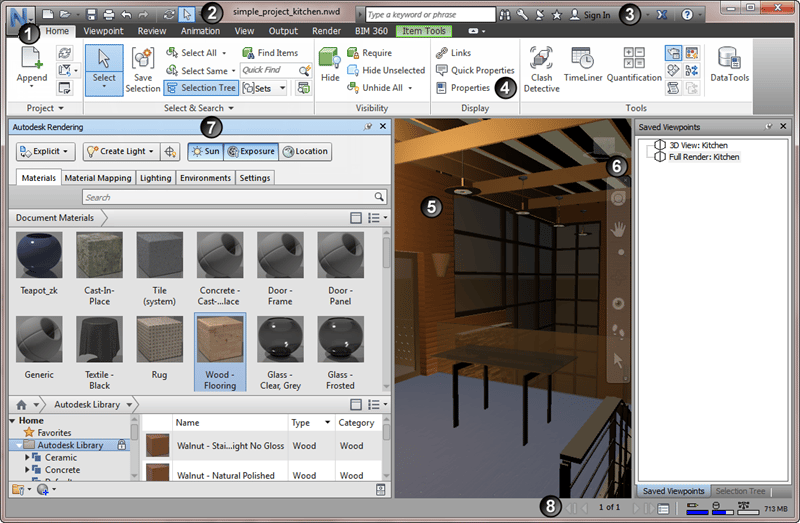
Keyboard shortcuts improve speed, accuracy, and workflow efficiency. They reduce the need for manual navigation through menus and allow professionals to focus on coordination, analysis, and decision-making tasks.
The value of shortcuts becomes clear when considering how they impact daily workflows:
-
Faster Navigation Across Models
Shortcuts allow users to move quickly through a navisworks 3d model, improving review speed and reducing delays during coordination, especially in large-scale infrastructure projects. -
Improved Clash Detection Workflow
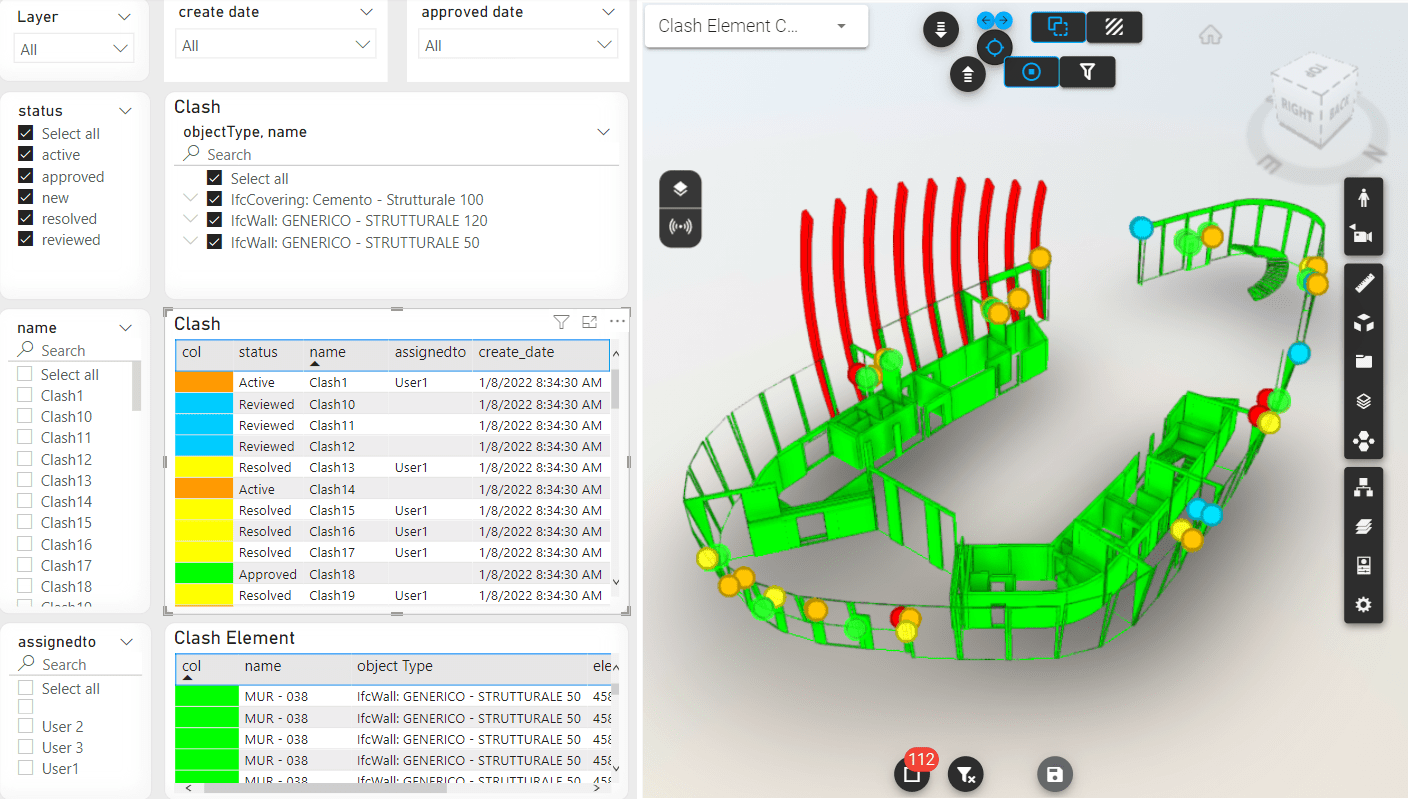
During Navisworks clash detection, quick access to commands helps users review and resolve issues more efficiently, minimizing rework during construction. -
Better Coordination Between Teams
Faster navigation supports smoother Navisworks coordination, especially when working across multiple disciplines such as architecture, engineering, and construction. -
Enhanced Software Efficiency
Leveraging shortcuts unlocks the full potential of Navisworks features, reducing time spent on repetitive tasks and improving user productivity. -
Optimized Integration with Other Tools
Shortcuts support seamless Navisworks integration, helping users move between different BIM platforms with ease and maintain data consistency. -
Consistent Workflow Performance
Using shortcuts regularly improves familiarity with Navisworks workflows, leading to better productivity and fewer errors over time.
These advantages highlight the functional Navisworks benefits of using shortcuts in daily tasks. They allow professionals to work more efficiently without compromising accuracy.
What Are the Most Useful Navisworks Keyboard Shortcuts?
Understanding the most useful shortcuts helps users navigate models, review clashes, and manage projects efficiently. These commands are widely used across different Navisworks versions and workflows.
The following shortcuts are commonly used in Navisworks keyboard shortcuts workflows and align with industry practices:
-
Navigation Controls
-
F2: Select tool for interacting with objects
-
F3: Pan tool for moving across the model
-
F4: Orbit tool for rotating views
These shortcuts improve navigation within large models, especially for Navisworks for architects and design reviews where quick visual access is essential. -
Selection and Visibility
-
Ctrl + A: Select all elements
-
Ctrl + Shift + A: Deselect all
-
H: Hide selected objects
-
Shift + H: Unhide all
These commands help users manage visibility, which is essential during Navisworks for engineers' workflows involving complex systems. -
View and Display Controls
-
F5: Refresh view
-
Ctrl + 1: Perspective view
-
Ctrl + 2: Orthographic view
These shortcuts improve how models are visualized, especially when using Navisworks rendering features to present designs clearly. -
Clash Detection Commands
-
F10: Open clash detection window
-
Ctrl + N: Create new clash test
These are essential when working with Navisworks Manage, where clash detection is a primary function for coordination tasks. -
TimeLiner and Simulation
-
Ctrl + T: Open TimeLiner
These commands support scheduling and Navisworks simulate workflows, helping users manage timelines effectively and visualize construction sequences. -
General Productivity Shortcuts
-
Ctrl + S: Save project
-
Ctrl + O: Open file
-
Ctrl + Z: Undo
These shortcuts improve overall efficiency when working in Navisworks for construction environments, especially during frequent updates.
These shortcuts are not limited to one version. They are useful across Navisworks Freedom, Navisworks Simulate, and Navisworks Manage, making them essential for all users working in BIM-based projects.
Tips for Maximizing Productivity in Navisworks
Improving productivity in Navisworks requires a combination of shortcuts, workflow strategies, and tool knowledge. Efficient users focus on reducing repetitive actions and improving coordination accuracy.
To enhance efficiency, consider the following Navisworks productivity tips:
-
Organize Models Effectively
Structuring your navisworks 3d model properly improves navigation and reduces time spent searching for elements, especially in large multidisciplinary projects. -
Use Clash Detection Strategically
Running Navisworks clash detection at key stages helps identify issues early and prevents delays during construction and execution phases. -
Leverage Coordination Tools
Using tools such as the Navisworks coordination plugin improves communication and ensures better alignment between teams across disciplines. -
Work with Integrated Platforms
Using Navisworks BIM 360 integration allows real-time collaboration, improving coordination across distributed teams and project stakeholders. -
Optimize Visualization Settings
Adjusting Navisworks rendering features improves clarity when reviewing models and presenting designs to clients or internal teams. -
Understand Software Capabilities
Learning advanced Navisworks features helps users unlock the full potential of the platform and work more efficiently. -
Apply Practical Workflow Techniques
Using proven Navisworks tricks such as saved viewpoints, sectioning tools, and viewpoints can significantly reduce review time.
These strategies improve efficiency and help professionals handle complex projects more effectively while maintaining accuracy.
Tips for Effective Shortcut Implementation
Implementing shortcuts effectively requires consistent practice and integration into daily workflows. This ensures long-term productivity improvements.
To make the most of shortcuts, follow these practical steps:
-
Start with Core Commands
Focus on frequently used Navisworks keyboard shortcuts such as navigation and selection tools before moving to advanced commands. -
Customize Your Workflow
Adapt shortcuts to match your project requirements and improve Navisworks workflows efficiency. -
Practice in Real Scenarios
Apply shortcuts during actual project tasks to build familiarity and confidence. -
Combine Shortcuts with Tools
Use shortcuts alongside features such as Navisworks coordination and clash detection to maximize efficiency. -
Collaborate with Teams
Sharing shortcut practices across teams ensures consistent workflows, especially in Navisworks for architects and engineering projects. -
Monitor Performance Improvements
Track time saved through shortcuts to understand their impact on productivity. -
Stay Updated with Software Enhancements
As Navisworks software evolves, new shortcuts and features may be introduced, improving overall efficiency.
These steps help professionals integrate shortcuts into their workflows and achieve consistent productivity gains.
.png)
.png)
.png)