


.png)

What Are the Most Common AutoCAD Queries Beginners Face?
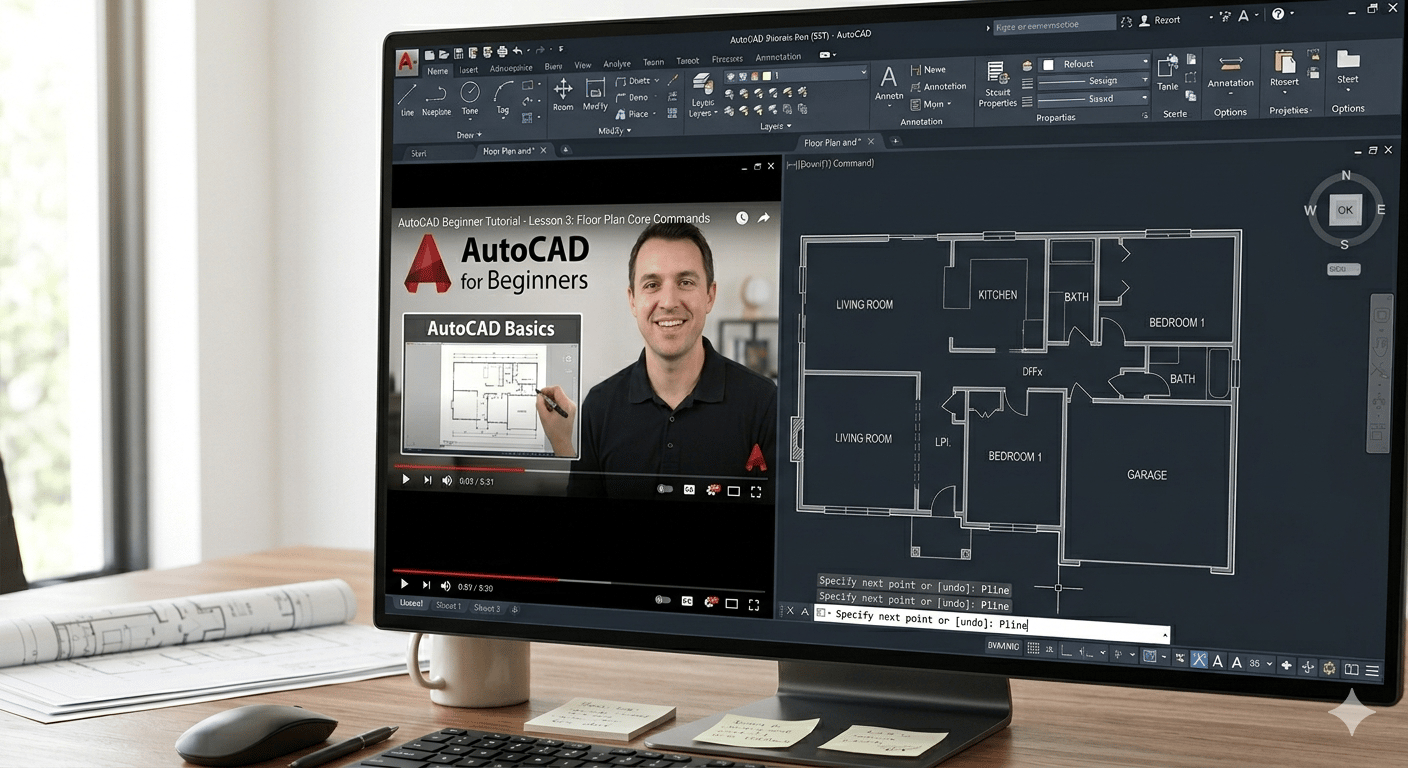
When you're actually working on drawings, problems don't show up one at a time. You might be trying to fix a scale issue while also dealing with plotting errors or unit confusion. Over time, you realize most of these errors repeat.
These are the common queries people search for:
File Conversion and Import
You'll deal with file formats all the time, so it helps to get these basics right early on.
-
How to Convert AutoCAD Drawing to PDF / How to Convert AutoCAD File to PDF
Use the PLOT (Ctrl+P) command, select "DWG to PDF.pc3," and set paper size. If the output looks off, it's usually because the scale or plot area wasn't set correctly.
-
How to Convert PDF to DWG in AutoCAD / How to Import PDF to AutoCAD
Use PDFIMPORT, but don't expect a clean file, lines often break into segments, and text may need manual fixing.
Measurement and Units
It is where small mistakes don't look obvious but affect everything later.
-
How to Calculate Area in AutoCAD
Use the AREA (AA) command or BOUNDARY (BO) if the shape isn't closed. Open edges will give incorrect values.
-
How to Change Units in AutoCAD / How to Set Units in AutoCAD
Use the UNITS (UN) command at the start. If units are wrong later, you'll end up fixing scale and dimensions manually.
Drawing and Editing Basics
These are the commands you'll end up using almost every time you open AutoCAD.
-
How to Draw Dotted Line in AutoCAD
Load linetypes using LINETYPE (LT), then apply them. If the pattern looks off, adjust LTSCALE.
-
How to Scale in AutoCAD
Use SCALE (SC), pick a base point carefully, and use the Reference (R) option if you need accurate scaling.
-
How to Draw Arrow in AutoCAD
Use MLEADER for arrows. You can tweak how they look through MLEADERSTYLE.
Dimensions and Display Settings
Good drawings should not just be accurate; they also need to be readable.
-
How to Change Dimensions in AutoCAD / How to Set Dimensions in AutoCAD
Use DIMSTYLE (D) to control text size, arrowheads, and scaling instead of editing dimensions one by one.
-
How to Change Background Color in AutoCAD
Go to OPTIONS > Display > Colors to adjust the background for better visibility during long sessions.
Blocks, Images, and Performance
As drawings become more detailed, efficiently managing elements becomes important.
-
How to Insert Image in AutoCAD
Use the ATTACH command (IMAGEATTACH) to insert images. Large files can slow performance, so keep resolution in check.
-
How to Make a Block in AutoCAD and How to Delete Block in AutoCAD
Create blocks using BLOCK (B) for repeated elements. To delete, use PURGE (PU). It removes unused ones, but if a block is still in use, you'll have to delete it manually first.
2D to 3D Conversion
It is where things start to feel a bit different from basic drafting.
- How to Convert 2D to 3D in AutoCAD
Use EXTRUDE (EXT) or PRESSPULL on closed shapes. If the geometry isn't clean, the result usually comes out wrong.
How Do You Fix AutoCAD File Corruption or Drawing Errors?
.png?width=1712&height=864&name=Keyboard%20Shortcuts%20and%20Productivity%20Hacks%20in%20SketchUp%20(3).png)
The most stressful issues are likely to be file related as there is a risk of losing data. You might open a file and see missing elements or receive an error saying it's invalid.
What usually helps:
-
AUDIT command: It checks the drawing for internal errors and attempts to fix them.
-
PURGE command: This command clears any layers, blocks, or other data no longer needed, essentially tidying up the file.
-
RECOVER option: It is helpful when you can't open a file the usual way.
-
Backup files: check .bak or autosave files; these usually help recover lost work
-
Insert into a new file: Sometimes just putting it in a new file helps isolate the problem.
File corruption can't always be avoided, especially in large projects. Regular cleanup and backups still help reduce the risk.
What Causes AutoCAD Performance Issues and How to Speed It Up?
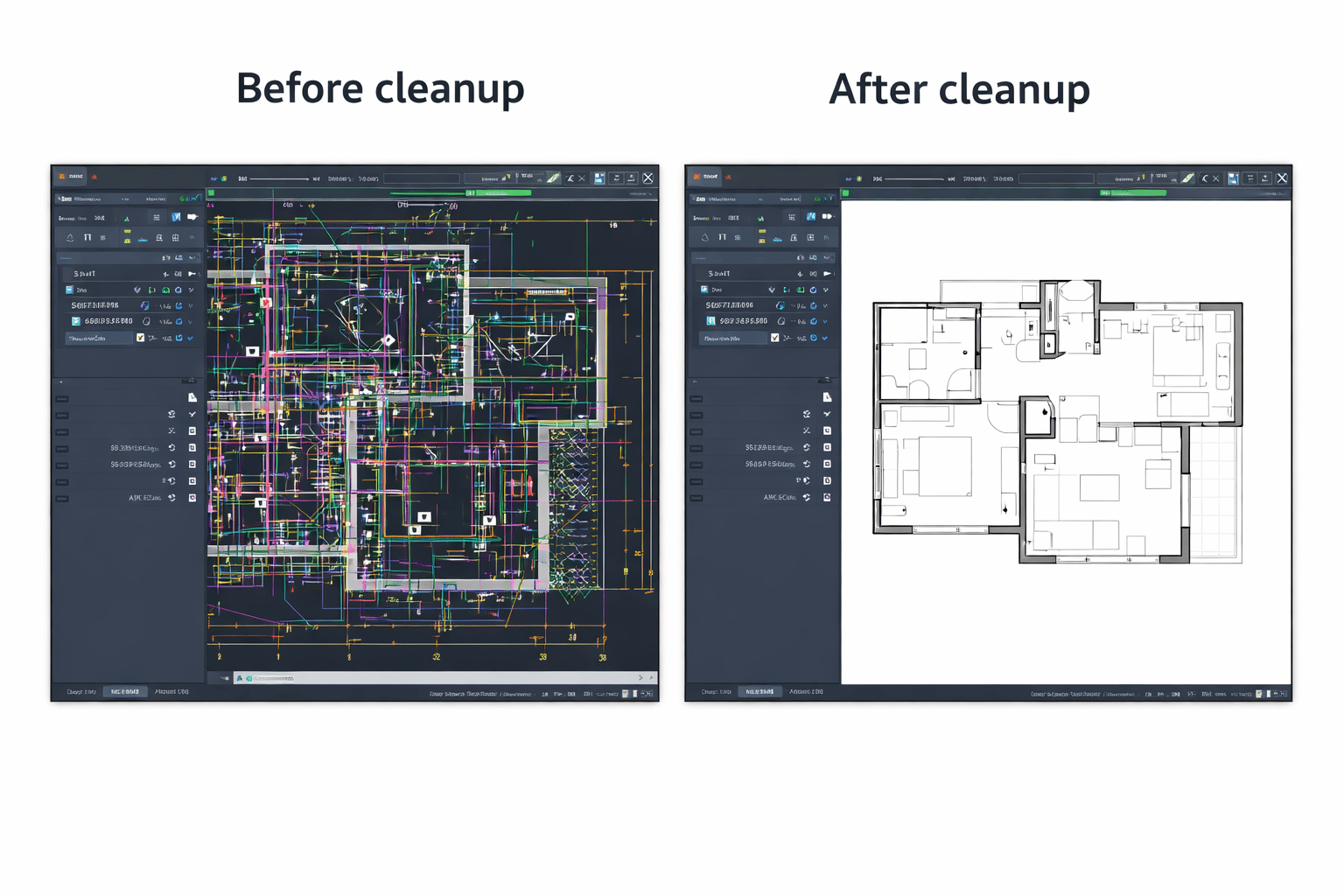
As your project grows, performance problems often arise. Things that worked well before suddenly start to slow down.
Fixes that work in such conditions are:
-
To clean a heavy file, run PURGE and OVERKILL.
-
Turn off layers that you don't need.
-
Don't import big files unless you have to.
-
Instead of detailed visual styles, use simpler ones.
-
If you can, upgrade your RAM or graphics hardware.
-
When you work, close any apps that are running in the background.
Many small problems can cause slow performance, not just one big one. Fixing them one at a time usually makes a big difference.
Why Are AutoCAD Commands Not Working and How to Fix Them?
It is one of those problems that can confuse beginners. A command that worked before suddenly stops responding.
Things to check:
-
Command spelling or syntax.
-
Settings for SNAP, ORTHO, or GRID
-
Setting up your workspace
-
Command shortcuts
-
If necessary, reset the AutoCAD settings.
Most problems with commands are only temporary. These problems are easier to address once you understand how settings affect behavior.
How Do You Troubleshoot AutoCAD Printing and Plot Errors?
Printing is often the final step, but it is also where many mistakes become visible.
What to look at:
-
Plot settings and printer selection
-
Paper size and layout
-
Scale factor
-
Plot area selection
-
Lineweight settings
-
Layer visibility
.png)
.png)