---
title: V-Ray for SketchUp Guide for Architects & Designers
description: Master V-Ray for SketchUp with step-by-step settings, lighting, materials, and pro tips to help architects and designers create photorealistic renders.
image: https://blog.novatr.com/hubfs/V-Ray%20for%20SketchUp_%20The%20Ultimate%20Guide%20for%20Architects%20%26%20%20Designers.jpg
---
[Blogs](https://www.novatr.com/learning-hub)
- [Architecture & Construction](https://www.novatr.com/learning-hub?category=Architecture+%26+Construction)
- [BIM](https://www.novatr.com/learning-hub?category=BIM)
- [Computational Design](https://www.novatr.com/learning-hub?category=Computational+Design)
- [Company News](https://www.novatr.com/learning-hub?category=Company+News)
- [Expert Talks](https://www.novatr.com/learning-hub?category=Expert+Talks)
Explore Courses
[Just Launched  BIM Professional Program v.2026 Take your career to the next level by mastering the real-world application of BIM. Know More](https://www.novatr.com/courses/bim-professional-program)
[ Master Computational Design Course Break into an advanced career by learning to apply the power of computation to the art of design. Know More](https://www.novatr.com/courses/computational-design)
[Blogs](https://www.novatr.com/learning-hub)
Explore Blogs
- [Architecture & Construction](https://www.novatr.com/learning-hub?category=Architecture+%26+Construction)
- [BIM](https://www.novatr.com/learning-hub?category=BIM)
- [Computational Design](https://www.novatr.com/learning-hub?category=Computational+Design)
- [Company News](https://www.novatr.com/learning-hub?category=Company+News)
- [Expert Talks](https://www.novatr.com/learning-hub?category=Expert+Talks)
Courses
- [BIM Professional Program v.2026](https://www.novatr.com/courses/bim-professional-program)
- [Master Computational Design](https://www.novatr.com/courses/computational-design)
- [ARCHI/](https://www.novatr.com/learning-hub?category=BIM)
Featured Article
# V-Ray for SketchUp: The Ultimate Guide for Architects & Designers

Bandana Singh
March 18, 2025
7 min read
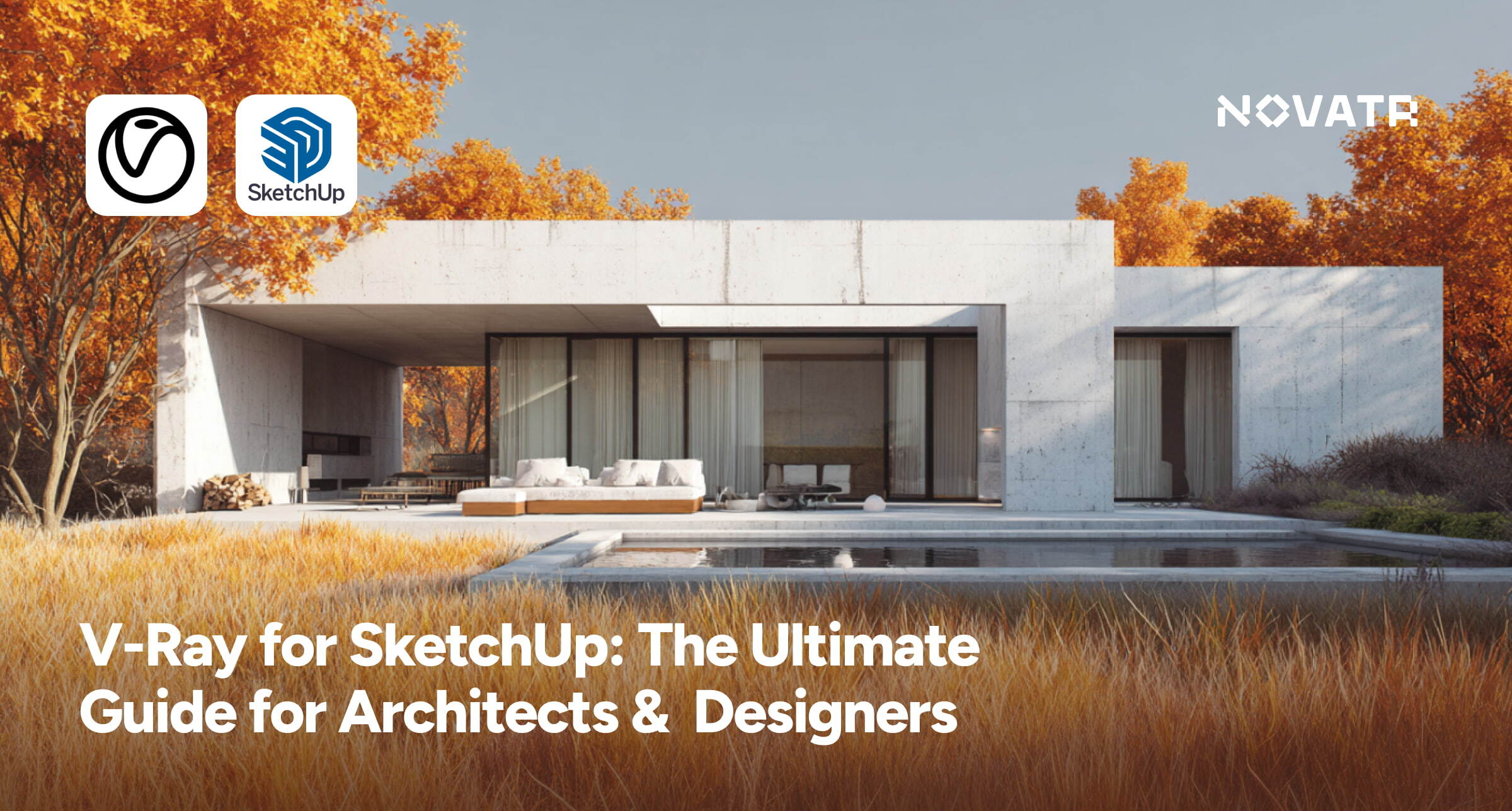

For **architects**, **interior designers**, and **3D visualizers**, mastering **V-Ray for SketchUp** is one of the fastest ways to produce photorealistic renderings that impress clients. SketchUp’s intuitive modeling tools and V-Ray’s advanced lighting, materials, and rendering engines together form a complete visualization system. This article walks you through what V-Ray does, how to download and install it, and how to make the most of its modeling, lighting, and rendering capabilities. You’ll also learn key workflow steps and expert tips to help you create high-quality, client-ready visuals confidently.
Whether you’re developing concept presentations or detailed construction renders, V-Ray for SketchUp enables architects and designers to communicate their creative intent with unmatched realism.
Unlock High-Paying Careers With BIM
Master BIM workflows, software and skills on real projects.
Apply Now
\*Limited seats available
## **What is V-Ray and Its Role for SketchUp Rendering?**
V-Ray is a high-performance rendering engine that transforms 3D models into photorealistic visuals with advanced lighting, textures, and material detailing. It seamlessly integrates with SketchUp modeling, allowing architects and designers to create highly accurate representations of their designs. With features like global illumination, ray tracing, and customizable render settings, V-Ray helps produce stunning visuals that accurately depict real-world materials and lighting conditions.
The true power of V-Ray for SketchUp lies in its ability to enhance both creativity and efficiency. It enables professionals to fine-tune every aspect of a scene, from reflections to shadows, ensuring a realistic and immersive presentation. Whether for client approvals or design evaluations, V-Ray’s precision-driven rendering capabilities make it an [essential BIM tool](https://www.novatr.com/blog/vdc-bim-softwares) for architectural visualization.
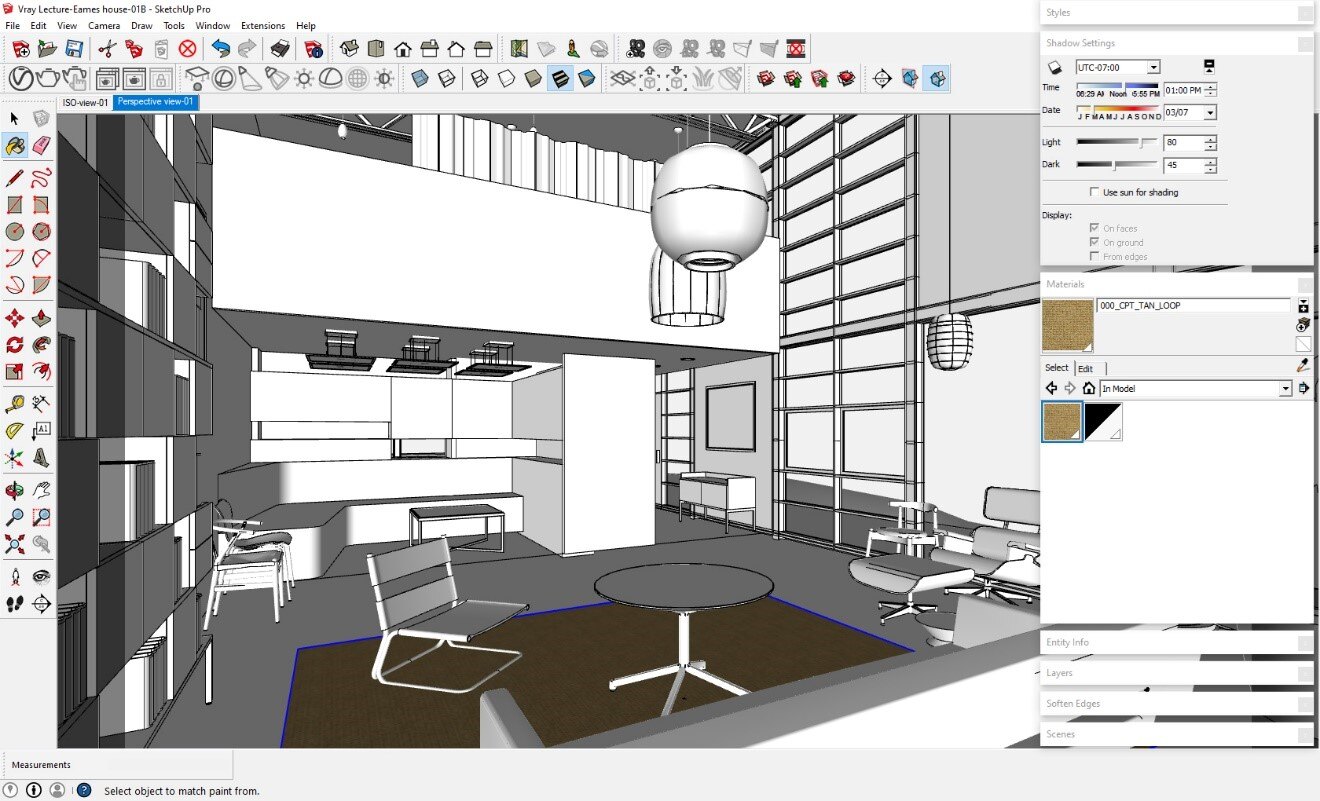
## **Step-By-Step Process to Download V-Ray for SketchUp**
If you are wondering how to download V-Ray for SketchUp, the process is simple. Follow these steps to get started:
**Step 1:** Visit the official Chaos website, go to the **V-Ray for SketchUp** section.
**Step 2:** Choose the correct version for your SketchUp release and operating system (Windows/macOS).
**Step 3:** Log in or create your Chaos account.
**Step 4:** Download and run the installer file.
**Step 5:** Follow the setup instructions and activate your trial or license key.
**Step 6:** Launch SketchUp, open the Extensions Panel, and confirm that V-Ray is enabled.
Interesting Fact: V-Ray is the rendering tool of choice for 95 of the top 100 architecture firms, helping visualize the world’s tallest skyscrapers, most energy-efficient homes, and the smartest cities across the globe. ([Chaos](https://www.chaos.com/architectural-visualization?srsltid=AfmBOopsV7sHjc5CdilPCS1RsnJDibnxlGpDFdJEocmqCKzqkhXjXSFJ))
## **How V-Ray Enhances Modeling Capabilities of SketchUp**
Integrating SketchUp and V-Ray allows architects and designers to achieve highly detailed and realistic visualizations. V-Ray’s [advanced rendering tools](https://www.novatr.com/blog/best-rendering-software) push SketchUp’s modeling capabilities further, making it a powerful solution for professionals working on complex designs. Here is how it enhances the workflow.
### **1. Photorealistic Lighting and Shadows**
V-Ray’s advanced lighting system simulates natural and artificial light sources with high precision. Features like global illumination and real-time light adjustments help in how to make realistic render in SketchUp, ensuring depth, soft shadows, and accurate reflections for a true-to-life appearance.
### **2. Seamless Integration with BIM Workflow**
V-Ray complements design with [Building Information Modeling](https://www.novatr.com/blog/detailed-bim-guide) by enabling architects to produce high-quality renders directly from their SketchUp models. This helps professionals validate design decisions, present accurate visualizations, and communicate ideas effectively to clients and stakeholders.
### **3. High-Quality Material Rendering**
The ability to create custom textures and materials enhances SketchUp’s visualization capabilities. V-Ray’s material editor supports reflections, transparency, and displacement maps, allowing users to apply realistic finishes to surfaces like wood, metal, and glass with intricate detailing.
### **4. Adaptive Rendering for Speed**
V-Ray optimizes rendering performance with interactive and GPU-accelerated rendering. This ensures faster previews and high-resolution outputs, making it easier for professionals to refine their SketchUp and V-Ray models without long wait times.
### **5. Realistic Environmental Effects**
Features like aerial perspective, fog, and atmospheric effects make renders more immersive. V-Ray allows users to simulate real-world conditions such as mist, smoke, and environmental lighting, enhancing the overall realism of the scene.
Also Read: [How to Render in SketchUp: A Complete Guide for Architects & Designers](https://www.novatr.com/blog/how-to-render-in-sketchup)
## **How to Use V-Ray for SketchUp Rendering**
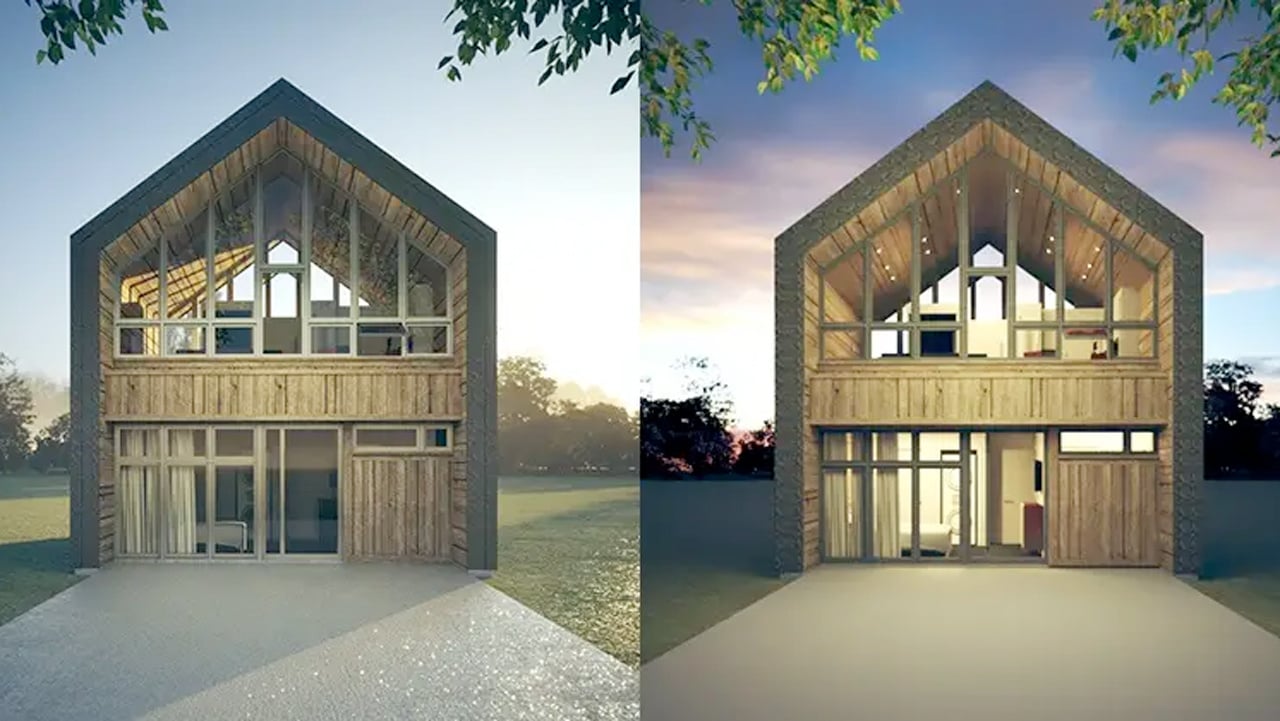
V-Ray is a powerful rendering engine that transforms SketchUp 3D rendering into high-quality visuals with realistic lighting, textures, and effects. Knowing [how to render in SketchUp](https://www.novatr.com/blog/how-to-render-in-sketchup) using V-Ray can enhance your presentations and bring your designs to life. Here are some essential steps to achieve professional-grade renders.
### **1. Set Up Your V-Ray Toolbar**
Once installed, V-Ray’s toolbar appears in SketchUp, providing access to essential rendering tools. Familiarize yourself with the asset editor, light settings, and camera controls to streamline your workflow before you begin working on your scene.
### **2. Apply and Customize Materials**
V-Ray’s material editor allows you to refine SketchUp textures by adjusting properties like reflectivity, roughness, and transparency. For realistic surfaces, use high-resolution textures and fine-tune material settings for accurate reflections and depth.
### **3. Optimize Lighting for Realism**
Proper lighting is crucial when you render in SketchUp. [V-Ray](https://www.novatr.com/blog/what-is-vray) offers multiple light sources, such as Sunlight, Dome Light, and Artificial Lights, which can be adjusted to mimic different times of day and interior conditions. Experiment with intensity and direction to achieve natural shadows and highlights.
### **4. Adjust Camera Settings**
The right camera angles and exposure settings impact the final render. V-Ray provides options for depth of field, motion blur, and white balance, allowing you to create balanced compositions that enhance the visual storytelling of your architectural design.
### **5. Fine-Tune Render Settings**
V-Ray’s render settings control quality and performance. Adjust parameters like image resolution, noise reduction, and rendering speed to find the right balance between quality and efficiency. Using progressive rendering helps preview changes in real time before finalizing the output.
### **6. Post-Process with V-Ray Frame Buffer**
After rendering, the V-Ray Frame Buffer (VFB) allows color correction, contrast adjustments, and exposure fine-tuning without external editing software. This step helps refine the final image and make necessary enhancements for a polished look.
Also Read: [10 Best SketchUp Plugins for Architects & Designers 2026](https://www.novatr.com/blog/top-sketchup-plugins)
## **Tips and Tricks for Realistic Rendering in SketchUp with V-Ray**
Achieving photorealistic visuals in SketchUp 3D rendering requires more than just basic rendering knowledge. By mastering the right techniques, you can create stunning, lifelike images that enhance architectural presentations. Go through some essential tips and tricks that you must know for realistic rendering in SketchUp with V-Ray.
### **1. Perfect the Lighting Setup**
Lighting plays a crucial role in how realistic a render looks. Instead of relying solely on default lighting, combine natural and artificial light sources. V-Ray’s Sun and Sky system can replicate daylight conditions, while Dome Lights and artificial lights help create balanced indoor environments.
### **2. Leverage Global Illumination for Natural Shadows**
Shadows bring depth and realism to renders. Using V-Ray’s Global Illumination (GI) and Ambient Occlusion (AO) improves the accuracy of light bounces, ensuring softer, more natural-looking shadows. This technique is essential in design with BIM for precise lighting analysis in [3D architectural models](https://www.novatr.com/blog/3d-architectural-modelling).
### **3. Use High-Quality Textures**
Low-resolution textures can make even the best designs look unrealistic. To achieve professional results in SketchUp modeling, use high-resolution textures and refine them with V-Ray’s material editor by adjusting properties like reflectivity, bump mapping, and translucency for added depth and detail.
### **4. Set Realistic Camera Angles**
A well-framed shot makes a significant impact on rendering quality. Use V-Ray’s camera settings to adjust exposure, depth of field, and field of view. Mimic real-world photography techniques by slightly tilting the camera to add perspective and balance to your composition.
### **5. Optimize Reflection and Refraction**
Real-world materials interact with light differently. For reflective surfaces like glass, water, and metal, adjust reflection glossiness and Fresnel effects to mimic natural behavior. Properly configured transparency and refraction settings can also enhance glass materials, making them more lifelike.
Example: For an interior render, Sunlight (0.9 intensity), Dome Light HDRI (5), ISO 200, shutter speed 1/100, produces balanced daylight tone.
Master BIM and Get Hired Faster
Join a community of 8500+ Architects and Engineers.
Explore Now
\*Limited seats available
## Conclusion
Mastering **V-Ray for SketchUp** empowers architects and designers to transform simple models into breathtaking, photorealistic visuals. By learning how to install, configure, and optimize render settings, you can present projects with professional clarity and realism. Start experimenting with light, materials, and camera settings to develop your unique visual style. For deeper expertise, explore the [BIM Course for Architects](https://www.novatr.com/us/courses/building-information-modelling) by[ **Novatr**](https://www.novatr.com/us) designed to enhance 3D modeling and visualization skills across leading AEC tools. To keep growing, visit the Novatr Resource Page for expert guides and architectural learning resources.
To stay updated with the AEC industry, you can also visit Novatr's [Resource Page](https://www.novatr.com/learning-hub)!
## **FAQs**
### **1. Is V-Ray free with SketchUp?**
No, V-Ray is a paid plugin developed by Chaos. You can access a free trial to explore its features before purchasing.
### **2. Can I use V-Ray for SketchUp to render architectural walkthroughs?**
Yes, you can render walkthroughs by creating animation scenes in SketchUp and using V-Ray’s Animation Batch Rendering to export frame sequences.
### **3. How do I create realistic night scenes in V-Ray?**
Use IES and emissive lights for interior illumination. Lower ambient light, and apply an HDRI night sky for outdoor environments.
### **4. Can I render animations in V-Ray for SketchUp?**
Yes, enable animation in the V-Ray Asset Editor and select “Render Animation” mode for sequential frame rendering.
### **5. Can I adjust V-Ray’s render output size in SketchUp?**
Yes, go to the V-Ray Asset Editor → Render Output → Resolution, and choose custom dimensions suitable for your print or digital use.
Was this content helpful to you
Like Yes
Dislike No

TABLE OF CONTENTS
BIM Is The New Standard. Are You Certified?
Get Certified in BIM
SHARE ON YOUR SOCIALS
Link Copied Successfully
Related articles
[ Building Information Modelling How to Become a Registered Architect in India: A Step-by-Step COA Registration Guide 16 April 2025 4 min read](https://blog.novatr.com/blog/step-by-step-coa-registration-process) [.png) Building Information Modelling Most Common Interview Questions for Urban Planners in \[2026\] 17 July 2025 5 min read](https://blog.novatr.com/blog/interview-questions-for-urban-planners) [.png) BIM Archi Best YouTube Channels, Courses & Communities to Learn Autodesk Construction Cloud 12 May 2026 5 min read](https://blog.novatr.com/blog/best-resources-to-learn-autodesk-construction-cloud) [ BIM 360 Workflows for Architects: Streamlining Design & Collaboration 30 March 2026 5 min read](https://blog.novatr.com/blog/bim-360-workflow-for-architects)
Download Syllabus
## BIM Professional Program
Next Cohort
June 2026
Program Duration
7 Months
Premium Program benefits
8 Credentials from Autodesk, NSDC, Novatr
1 program. 10 career paths. Infinite Growth.
40+ ISO 19650 & RIBA real-world projects to practice
1-on-1 guidance. Access 400+ industry experts.
Access the biggest AEC-Tech community on the planet. 8500+ and counting
Curated for you by 100+ global BIM leaders.
Lifelong access to course content
Enter your details to download the program syllabus.
##### BIM Professional Program
June 2026, 7 Months
Your Name Invalid name.
Phone Number Enter a valid phone number
Email Please enter a valid email address.
Select years of experience\* Currently studying 0-1 years 1-2 years 2-4 years 4-8 years 8-10 years 10-12 years 12+ years Invalid selection.
Specialisation Select your background\* Architecture Civil Engineering Mechanical Engineering Electrical Engineering Invalid selection.
Are you professionally trained in interior design?
Yes
No
I agree to the [Terms of Use](https://www.novatr.com/terms-and-conditions) and [Privacy Policy](https://www.novatr.com/privacy-policy), and consent to be contacted by Email, Call, WhatsApp, or SMS.
Submit
Ready to skyrocket your career?
Begin your next chapter in AEC
with Novatr!
We are here to help you take the industry by storm with advanced, tech-first skills.
[Explore Courses](https://www.novatr.com/#courses)
Join our newsletter
Submit
Thank you for signing up.
We’ll send you a nice letter once per week. No spam.

Dare to Disrupt.
Join thousands of people who organise
work and life with Novatr.
Company
- [About Us](https://www.novatr.com/about)
- [BIM Professional Program v.2026](https://www.novatr.com/courses/bim-professional-program)
- [Masters Computational Design](https://www.novatr.com/courses/computational-design)
- [Become a Mentor](https://www.novatr.com/apply-as-mentor)
- [Hiring from Us](https://www.novatr.com/hire-from-us)
- [Careers at Novatr](https://www.novatr.com/career)
Resources
- [Blog](https://www.novatr.com/learning-hub)
- [Media Room](https://www.novatr.com/media-room-home-page)
- [Career Builder](https://www.novatr.com/career-navigator)
- [Events & Webinars](https://www.novatr.com/webinars)
- [FAQs & Support Center](https://www.novatr.com/contact-us)
- [Contact Us](https://www.novatr.com/contact-us)
- [Privacy Policy](https://www.novatr.com/privacy-policy)
- [Terms of Use](https://www.novatr.com/terms-and-conditions)
©2023 Oneistox Network Pvt. Ltd.
All Rights Reserved
```json
{
"@context" : "https://schema.org",
"@type" : "BlogPosting",
"author" : {
"@type" : "Person",
"name" : "Bandana Singh",
"url" : "https://blog.novatr.com/blog/author/bandana-singh"
},
"dateModified" : "2025-11-20T07:26:11.935Z",
"datePublished" : "2025-03-18T09:28:57.000Z",
"headline" : "V-Ray for SketchUp Guide for Architects & Designers",
"image" : [ "https://blog.novatr.com/hubfs/V-Ray%20for%20SketchUp_%20The%20Ultimate%20Guide%20for%20Architects%20&%20%20Designers.jpg" ],
"mainEntityOfPage" : {
"@id" : "https://blog.novatr.com/blog/v-ray-for-sketchup",
"@type" : "WebPage"
},
"publisher" : {
"@type" : "Organization",
"logo" : {
"@type" : "ImageObject",
"url" : "https://blog.novatr.com/hubfs/Novatr%20Prev%20OX-2.svg"
}
}
}
```