---
title: Keyboard Shortcuts and Productivity Hacks in SketchUp 2026
description: Explore the most useful shortcuts in SpetchUp, how to improve navigation, document management, automation, and more
image: https://blog.novatr.com/hubfs/Keyboard%20Shortcuts%20and%20Productivity%20Hacks%20in%20SketchUp%20(1).png
---
[Blogs](https://www.novatr.com/learning-hub)
- [Architecture & Construction](https://www.novatr.com/learning-hub?category=Architecture+%26+Construction)
- [BIM](https://www.novatr.com/learning-hub?category=BIM)
- [Computational Design](https://www.novatr.com/learning-hub?category=Computational+Design)
- [Company News](https://www.novatr.com/learning-hub?category=Company+News)
- [Expert Talks](https://www.novatr.com/learning-hub?category=Expert+Talks)
Explore Courses
[Just Launched  BIM Professional Program v.2026 Take your career to the next level by mastering the real-world application of BIM. Know More](https://www.novatr.com/courses/bim-professional-program)
[ Master Computational Design Course Break into an advanced career by learning to apply the power of computation to the art of design. Know More](https://www.novatr.com/courses/computational-design)
[Blogs](https://www.novatr.com/learning-hub)
Explore Blogs
- [Architecture & Construction](https://www.novatr.com/learning-hub?category=Architecture+%26+Construction)
- [BIM](https://www.novatr.com/learning-hub?category=BIM)
- [Computational Design](https://www.novatr.com/learning-hub?category=Computational+Design)
- [Company News](https://www.novatr.com/learning-hub?category=Company+News)
- [Expert Talks](https://www.novatr.com/learning-hub?category=Expert+Talks)
Courses
- [BIM Professional Program v.2026](https://www.novatr.com/courses/bim-professional-program)
- [Master Computational Design](https://www.novatr.com/courses/computational-design)
- [Archi/](https://www.novatr.com/learning-hub?category=BIM)
Featured Article
# Keyboard Shortcuts and Productivity Hacks in SketchUp

Harshita Chaudhary
April 17, 2026
4 min read
.png)

If you've ever found yourself constantly clicking through menus while modeling in SketchUp, there's a better way. SketchUp keyboard shortcuts are one of the simplest and most effective ways to improve how you work, saving time and keeping your creative flow intact. But shortcuts are just the beginning. SketchUp is packed with productivity hacks that most users never fully explore.
In this article, we'll walk you through the essential SketchUp keyboard shortcuts every modeler should know, how to customise them to suit your workflow, and the tips and tricks that separate beginners from pro users.
Unlock High-Paying Careers With BIM
Master BIM workflows, software and skills on real projects.
Apply Now
\*Limited seats available
## What are the most essential keyboard shortcuts every SketchUp user should know?
When you learn SketchUp, one of the first things that boosts your efficiency is getting familiar with SketchUp keyboard shortcuts. This 3D modeling software is built for speed, and its shortcuts reflect that.
Here are the must-know SketchUp keyboard shortcuts for every user:
- **Line Tool** – L
- **Push/Pull** – P
- **Move Tool** – M
- **Orbit** – O
- **Eraser** – E
- **Rectangle** – R
- **Tape Measure** – T
These shortcuts work seamlessly across SketchUp tools, helping you build and refine 3D models without breaking your rhythm. Whether you're drafting architectural layouts, preparing a SketchUp file for clients, or setting up scenes for rendering, knowing these commands keeps your process tight and intentional.
As you explore more features, pairing shortcuts with must-use tools will noticeably reduce your modeling time and improve your overall output.
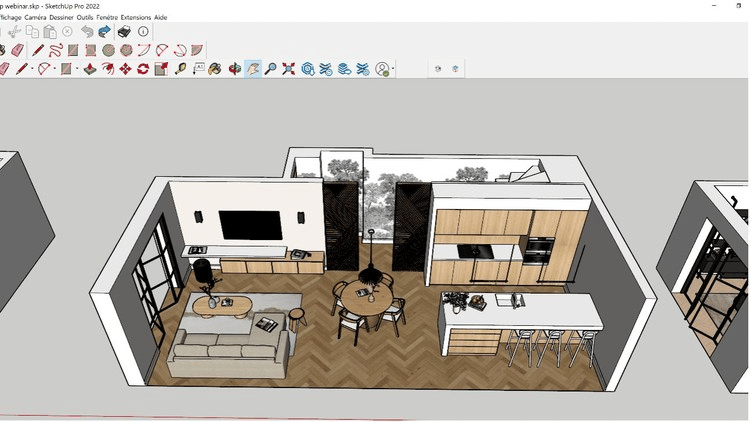
## How can custom shortcuts improve modeling speed and workflow efficiency?
One of the most underused SketchUp features is the ability to create custom SketchUp keyboard shortcuts tailored to your specific workflow. While default shortcuts cover the basics, customisation is where SketchUp becomes significantly more efficient.
Assign keyboard shortcuts to your most-used commands, tools, scenes, and plugins. It keeps your workflow smooth and uninterrupted. This is especially valuable for professionals who handle complex 3D models or prepare detailed outputs for SketchUp rendering software.
To customise, go to Preferences > Shortcuts and map commands to keys that feel intuitive to you. Those exploring how to work faster in SketchUp will find that this single step makes a measurable difference.
As you take on more demanding SketchUp jobs and work with advanced 3D modeling software capabilities, personalised shortcuts become essential.
## What productivity hacks help with faster navigation and precise modeling?
Faster navigation in SketchUp 3D modeling software isn't just about knowing keyboard shortcuts; it's about combining them with habits that keep your modeling precise.
To achieve this, start by using the **S**croll Wheel to zoom, middle-click to orbit, and Shift + middle-click to pan, reducing reliance on toolbar clicks entirely. Pair these with SketchUp keyboard shortcuts to switch between tools instantly.
For precision, use SketchUp's inference engine. It snaps to edges, midpoints, and axes automatically. The Tape Measure and guidelines are must-use SketchUp tools for faster modeling that ensure accuracy across complex models.
Those looking to work faster in SketchUp should also explore extensions that improve productivity, such as selection filters and component management tools. Combined with the advanced features professionals use, these hacks create a workflow that is both fast and consistently precise.
## How can groups, components, and layers/tags boost performance?
Organising your model using groups, components, and layers/tags can boost performance and keep even the most complex builds manageable. Here’s how:
### **1. Groups**
- Isolate geometry to prevent unintended merging
- Keep your SketchUp file clean, structured, and easily editable
- Essential for maintaining control over individual elements within complex SketchUp 3D models
### **2. Components**
- Reusable elements that update globally when edited
- Drastically reduce file size and improve performance
- Indispensable for managing repetitive geometry one of the most useful features professionals rely on daily
### **3. Layers and Tags**
- Control visibility across complex scenes without deleting geometry
- Simplify preparation for SketchUp features for rendering and visualisation
- A workflow essential for those handling demanding SketchUp jobs
## What extensions and automation tools enhance productivity?
Extensions and automation tools are where SketchUp 3D software becomes irreplaceable. Whether you're managing large-scale architectural projects or preparing detailed SketchUp 3D models for clients, the right plugins automate repetitive tasks, expand native capabilities, and free you to focus on design.
### **1. Extensions Worth Exploring**
- Important plugins for SketchUp, like CleanUp³, automatically remove duplicates and fix model errors, keeping your SketchUp file optimised
- Joint Push Pull expands on native Push/Pull for curved and complex surfaces
- Curic Studio offers advanced selection and editing tools that complement SketchUp keyboard shortcuts
- Top SketchUp plugins for architecture, like Profile Builder, automate the creation of detailed structural elements, saving hours on repetitive modeling
### **2. Rendering and Visualisation Extensions**
- V-Ray and Enscape rank among the most used SketchUp rendering software integrations, delivering high-quality output directly from your model
- Easy render for SketchUp options like Lumion Live Sync allows real-time visualisation without repeatedly exporting files
### **3. Automation Tools**
SketchUp extensions that improve productivity, like Ruby scripts, automate custom workflows tailored to your project needs
Master BIM and Get Hired Faster
Join a community of 8500+ Architects and Engineers.
Explore Now
\*Limited seats available
## **Conclusion**
Becoming proficient in SketchUp keyboard shortcuts doesn’t happen overnight; it's a habit built over time, one project at a time. When SketchUp keyboard shortcuts are paired with organised modeling practices, the right plugins, and an in-depth understanding of SketchUp tools, the improvement in speed and output quality becomes clear. The workflows covered in this blog aren't just for advanced users; they're practical steps anyone can start applying immediately. Pick one area, build consistency, and the rest follows naturally.
If you’d like to learn more about SketchUp and how it can improve your work, we suggest exploring [Novatr’s](https://www.novatr.com/us) [BIM Professional Course for Architects](https://www.novatr.com/us/courses/building-information-modelling).
## FAQs
### **1. What are the most useful keyboard shortcuts in SketchUp?**
The most essential SketchUp keyboard shortcuts include L (Line), P (Push/Pull), M (Move), O (Orbit), E (Eraser), R (Rectangle), and T (Tape Measure).
### **2. How can custom shortcuts improve modeling speed in SketchUp?**
Custom SketchUp keyboard shortcuts map frequently used commands to intuitive keys, eliminating repetitive clicks and keeping your focus on modeling rather than navigating menus.
Was this content helpful to you
Like Yes
Dislike No
.png)
TABLE OF CONTENTS
BIM Is The New Standard. Are You Certified?
Get Certified in BIM
SHARE ON YOUR SOCIALS
Link Copied Successfully
Related articles
[ Keyboard Shortcuts and Productivity Hacks in BIM 360 8 April 2026 7 min read](https://blog.novatr.com/blog/keyboard-shortcuts-and-productivity-hacks-in-bim-360) [ What Is SketchUp and Why Do Architects Use It? 8 April 2026 5 min read](https://blog.novatr.com/blog/what-is-sketchup-and-why-do-architects-use-it) [ Best Features of SketchUp Architects Should Be Using 8 April 2026 5 min read](https://blog.novatr.com/blog/best-features-of-sketchup-architects-should-be-using) [.png) How AR is Enhancing On-Site MEP Installation Accuracy 22 April 2026 6 min read](https://blog.novatr.com/blog/using-ar-on-site-mep-projects)
Download Syllabus
## BIM Professional Program
Next Cohort
June 2026
Program Duration
7 Months
Premium Program benefits
8 Credentials from Autodesk, NSDC, Novatr
1 program. 10 career paths. Infinite Growth.
40+ ISO 19650 & RIBA real-world projects to practice
1-on-1 guidance. Access 400+ industry experts.
Access the biggest AEC-Tech community on the planet. 8500+ and counting
Curated for you by 100+ global BIM leaders.
Lifelong access to course content
Enter your details to download the program syllabus.
##### BIM Professional Program
June 2026, 7 Months
Your Name Invalid name.
Phone Number Enter a valid phone number
Email Please enter a valid email address.
Select years of experience\* Currently studying 0-1 years 1-2 years 2-4 years 4-8 years 8-10 years 10-12 years 12+ years Invalid selection.
Specialisation Select your background\* Architecture Civil Engineering Mechanical Engineering Electrical Engineering Invalid selection.
Are you professionally trained in interior design?
Yes
No
I agree to the [Terms of Use](https://www.novatr.com/terms-and-conditions) and [Privacy Policy](https://www.novatr.com/privacy-policy), and consent to be contacted by Email, Call, WhatsApp, or SMS.
Submit
Ready to skyrocket your career?
Begin your next chapter in AEC
with Novatr!
We are here to help you take the industry by storm with advanced, tech-first skills.
[Explore Courses](https://www.novatr.com/#courses)
Join our newsletter
Submit
Thank you for signing up.
We’ll send you a nice letter once per week. No spam.

Dare to Disrupt.
Join thousands of people who organise
work and life with Novatr.
Company
- [About Us](https://www.novatr.com/about)
- [BIM Professional Program v.2026](https://www.novatr.com/courses/bim-professional-program)
- [Masters Computational Design](https://www.novatr.com/courses/computational-design)
- [Become a Mentor](https://www.novatr.com/apply-as-mentor)
- [Hiring from Us](https://www.novatr.com/hire-from-us)
- [Careers at Novatr](https://www.novatr.com/career)
Resources
- [Blog](https://www.novatr.com/learning-hub)
- [Media Room](https://www.novatr.com/media-room-home-page)
- [Career Builder](https://www.novatr.com/career-navigator)
- [Events & Webinars](https://www.novatr.com/webinars)
- [FAQs & Support Center](https://www.novatr.com/contact-us)
- [Contact Us](https://www.novatr.com/contact-us)
- [Privacy Policy](https://www.novatr.com/privacy-policy)
- [Terms of Use](https://www.novatr.com/terms-and-conditions)
©2023 Oneistox Network Pvt. Ltd.
All Rights Reserved
```json
{
"@context" : "https://schema.org",
"@type" : "BlogPosting",
"author" : {
"@type" : "Person",
"name" : "Harshita Chaudhary",
"url" : "https://blog.novatr.com/blog/author/harshita-chaudhary"
},
"dateModified" : "2026-04-17T06:09:24.659Z",
"datePublished" : "2026-04-17T06:02:27.000Z",
"headline" : "Keyboard Shortcuts and Productivity Hacks in SketchUp {{year}}",
"image" : [ "https://blog.novatr.com/hubfs/Keyboard%20Shortcuts%20and%20Productivity%20Hacks%20in%20SketchUp%20(1).png" ],
"mainEntityOfPage" : {
"@id" : "https://blog.novatr.com/blog/keyboard-shortcuts-and-productivity-hacks-in-sketchup",
"@type" : "WebPage"
},
"publisher" : {
"@type" : "Organization",
"logo" : {
"@type" : "ImageObject",
"url" : "https://blog.novatr.com/hubfs/Novatr%20Prev%20OX-2.svg"
}
}
}
```