---
title: Keyboard Shortcuts and Productivity Hacks in Navisworks [2026]
description: Discover essential keyboard tricks and productivity tips to speed up your workflow and master Navisworks for design, coordination, and review.
image: https://blog.novatr.com/hubfs/Top%20Navisworks%20Courses%20for%20Architects%20in%20the%20USA%202026%20(1).png
---
[Blogs](https://www.novatr.com/learning-hub)
- [Architecture & Construction](https://www.novatr.com/learning-hub?category=Architecture+%26+Construction)
- [BIM](https://www.novatr.com/learning-hub?category=BIM)
- [Computational Design](https://www.novatr.com/learning-hub?category=Computational+Design)
- [Company News](https://www.novatr.com/learning-hub?category=Company+News)
- [Expert Talks](https://www.novatr.com/learning-hub?category=Expert+Talks)
Explore Courses
[Just Launched  BIM Professional Program v.2026 Take your career to the next level by mastering the real-world application of BIM. Know More](https://www.novatr.com/courses/bim-professional-program)
[ Master Computational Design Course Break into an advanced career by learning to apply the power of computation to the art of design. Know More](https://www.novatr.com/courses/computational-design)
[Blogs](https://www.novatr.com/learning-hub)
Explore Blogs
- [Architecture & Construction](https://www.novatr.com/learning-hub?category=Architecture+%26+Construction)
- [BIM](https://www.novatr.com/learning-hub?category=BIM)
- [Computational Design](https://www.novatr.com/learning-hub?category=Computational+Design)
- [Company News](https://www.novatr.com/learning-hub?category=Company+News)
- [Expert Talks](https://www.novatr.com/learning-hub?category=Expert+Talks)
Courses
- [BIM Professional Program v.2026](https://www.novatr.com/courses/bim-professional-program)
- [Master Computational Design](https://www.novatr.com/courses/computational-design)
- [ARCHI/](https://www.novatr.com/learning-hub?category=BIM)
Featured Article
# Boosting Efficiency in Navisworks with Time-Saving Keyboard Tricks
.jpeg)
Naina
July 11, 2025
8 min read
.png)

Navigating complex construction models or conducting Navisworks clash detection in large-scale projects can be exciting, but let's face it, it can also be time-consuming. That is where the magic of Navisworks shortcuts comes in. Whether you are using Navisworks Freedom, Navisworks Manage, or Navisworks Simulate, knowing your way around the keyboard can drastically cut down your modelling time and boost your confidence.
From zooming into your Navisworks 3D model with ease to improving Navisworks workflows, the right shortcuts turn you from a beginner into a power user. So, let us dive in and master some serious Navisworks productivity tips.
Unlock High-Paying Careers With BIM
Master BIM workflows, software and skills on real projects.
Apply Now
\*Limited seats available
## **Why Use Keyboard Shortcuts in Navisworks?**
Let us be real, no one enjoys fumbling through a dozen menus when a simple keystroke could do the job. Navisworks software is built with efficiency in mind, and like any good tool, it rewards those who use it smartly. Navisworks keyboard shortcuts are your backstage pass to a more innovative way of working.
Shortcuts eliminate repetitive mouse clicks and streamline the design-review process. When juggling large Navisworks for construction projects or working on Navisworks for architects and Navisworks for engineers, shaving off even a few seconds per task adds up. And if you are diving into Navisworks integration with [Navisworks](https://www.novatr.com/blog/navisworks-guide)BIM 360 integration, quick navigation becomes even more crucial. Plus, who does not like looking like a wizard while gliding through their model with lightning-fast precision?
So yes, keyboard shortcuts are more than just a trick; they are a mindset.
## **What Are the Most Useful Navisworks Keyboard Shortcuts?**
Here comes the fun part! Let us break down the most essential Navisworks shortcuts that every user should have in their toolbox. These work like a charm across Navisworks Freedom, Navisworks Manage, and Navisworks Simulate.
| Shortcut | Function |
| --- | --- |
| CTRL + 0 | Turns on Turntable mode. |
| CTRL + 1 | Turns on Select mode. |
| CTRL + 2 | Turns on Walk mode. |
| CTRL + 3 | Turns on Look Around mode. |
| CTRL + 4 | Turns on Zoom mode. |
| CTRL + 5 | Turns on Zoom Window mode. |
| CTRL + 6 | Turns on Pan mode. |
| CTRL + 7 | Turns on Orbit mode. |
| CTRL + 8 | Turns on Free Orbit mode. |
| CTRL + 9 | Turns on Fly mode. |
| CTRL + D | Toggles Collision mode. You must be in appropriate navigation mode (that is, Walk or Fly) for this keyboard shortcut to work. |
| CTRL + F | Displays the Quick Find dialogue box. |
| CTRL + G | Toggles Gravity mode. |
| CTRL + H | Toggles Hidden mode for selected items. |
| CTRL + I | Displays the Insert From File dialogue box. |
| CTRL + F1 | Opens the Help system. |
| CTRL + F3 | Toggles the TimeLiner Playback window. |
| CTRL + F7 | Toggles the Tilt window. |
| CTRL + F9 | Toggles the Plan View window. |
| CTRL + F10 | Toggles the Section View window. |
| CTRL + F11 | Toggles the Saved Viewpoints window. |
| CTRL + F12 | Toggles the Selection Tree window. |
| CTRL + HOME | Dollies and pans the camera so that the entire model is in view. |
| CTRL + Right Arrow | Play selected animation. |
| CTRL + Left Arrow | Reverse Play selected animation. |
| CTRL + SHIFT + HOME | Sets current view as Home. |
| CTRL + SHIFT + END | Sets current view as Front. |
| CTRL + SHIFT + Left Arrow | Takes you to the previous redline tag. |
| CTRL + SHIFT + Right Arrow | Takes you to the next redline tag. |
| CTRL + SHIFT + Up Arrow | Takes you to the first redline tag. |
| CTRL + SHIFT + Down Arrow | Takes you to the last redline tag. |
| F1 | Opens the Help system. |
| F2 | Renames the selected item, when appropriate. |
| F3 | Repeats the previously run Quick Find search. |
| F11 | Toggles Full Screen mode. |
| F12 | Opens the Options Editor. |
| SHIFT + W | Opens the last used SteeringWheel. |
| SHIFT + F1 | Enables you to get context-sensitive help. |
| SHIFT + F6 | Toggles the Comments window. |
| SHIFT + F7 | Toggles the Properties window. |
| SHIFT + F10 | Opens a context menu. |
| SHIFT + F11 | Opens the File Options dialog box. |
Each of these Navisworks keyboard shortcuts helps you move through the Navisworks features like a pro. Whether you are coordinating trades using the [Navisworks](https://www.novatr.com/blog/navisworks-guide)coordination plugin or performing a visual check in Navisworks rendering features, these commands will significantly speed up the process.
Pro tip: Do not try to memorise them all at once. Start with three or four, and gradually expand your list. Before you know it, your hands will just know what to do.
## **Tips for Maximising Productivity in Navisworks**
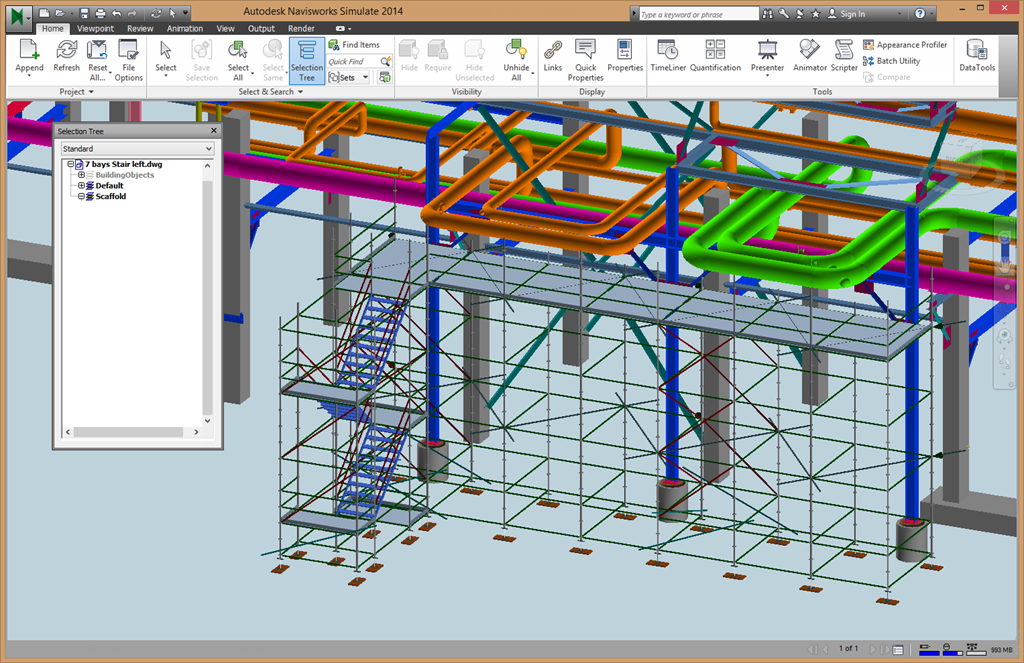
You have got the shortcuts, now what? It's time to combine them with practical Navisworks productivity tips that enhance your efficiency in a real-world setting.
### **1. Master Viewpoints and Sectioning Early**
Save custom viewpoints using Ctrl+Alt+S and revisit them as needed. Use S for sectioning to dig deep into your Navisworks [3D model](https://www.novatr.com/blog/bim-modeling-software), especially during design reviews or meetings. It helps in clarifying issues that words simply cannot explain.
### **2. Customise Your Workspace**
Whether you are in Navisworks Manage or Navisworks Simulate, set up a workspace that reflects how *you* work. Dock the Properties Palette (F4), use Selection Tree (F2) wisely, and minimise distractions.
### **3. Use Saved Search Sets**
Automate model element selection and improve coordination. It is a huge time-saver when performing Navisworks clash detection or reviewing Navisworks workflows.
### **4. Integrate with** [**BIM 360**](https://www.novatr.com/blog/navisworks-guide)
Leverage Navisworks BIM 360 integration for collaborative reviews. It allows live issue tracking and smoother communication across disciplines.
### **5. Embrace Full-Screen Mode for Presentations**
Use F11 to go full screen while showcasing the model to clients or stakeholders. Trust us, it makes a world of difference when presenting Navisworks for architects or Navisworks for construction use cases.
## **Tips for Effective Shortcut Implementation**
It is not just about knowing the shortcuts. It is also about using them wisely. Here are a few strategies to make them part of your daily work routine:
### **1. Create a Printed Shortcut Sheet**
Old school? Yes. Effective? Absolutely. Stick it next to your monitor. Highlight the Navisworks shortcuts you use most frequently so they become second nature.
### **2. Use Muscle Memory to Your Advantage**
Start using the shortcuts consciously. For example, hit H every time you hide something instead of reaching for the mouse. Repetition is the mother of mastery.
### **3. Share Shortcut Knowledge With Your Team**
Navisworks for engineers, architects, and project managers is often a collaborative effort. Share your top Navisworks tricks with your team. It ensures everyone is on the same page and makes Naviworks coordination much smoother.
### **4. Custom Shortcuts? Go for It!**
You can create and assign custom keyboard shortcuts within Navisworks software. Tailor it to your role — especially useful for niche tasks or when toggling between tools frequently.
### **5. Practice During Low-Stress Tasks**
Do not wait until crunch time. Use less urgent sessions to consciously practise your Navisworks keyboard shortcuts. It builds confidence and lowers your learning curve.
Master BIM and Get Hired Faster
Join a community of 8500+ Architects and Engineers.
Explore Now
\*Limited seats available
## **Conclusion **
Let us wrap it up, Navisworks shortcuts are not just for tech-savvy modellers; they are for anyone who wants to work faster, smarter, and more confidently. Whether you are using Navisworks Freedom for viewing, Navisworks Simulate for 4D planning, or Navisworks Manage for advanced coordination, these tips and tricks can transform your daily workflows.
From better Navisworks coordination to maximising Navisworks benefits in your projects, embracing keyboard shortcuts is one of the smartest moves you can make. Pair it with powerful Navisworks features like Navisworks rendering features and Navisworks integration, and you have got yourself a workflow worth showing off.
[BIM Architecture Course](https://www.novatr.com/us/courses/building-information-modelling) by [Novatr](https://www.novatr.com/us) is designed to help professionals and students seamlessly transition. This course bridges the gap between theory and implementation with industry-relevant tools, advanced BIM workflows, and mentorship delivered by experts.
Take the next step in your career today! Explore Novatr’s [Resource Page](https://www.novatr.com/learning-hub) for the latest industry insights and updates.
So, go ahead, start small, stay consistent, and soon you will be navigating your models like a true Navisworks ninja!
## **FAQs**
### **1. What are the most helpful keyboard shortcuts in Navisworks?**
Some of the most useful Navisworks shortcuts include H to hide selected items, F to focus, Z to zoom, F11 for full-screen mode, and Ctrl+Alt+S to save viewpoints. These Navisworks keyboard shortcuts allow faster navigation and make model interaction much smoother during reviews.
### **2. How can shortcuts improve productivity during clash detection and navigation?**
During Navisworks clash detection, using shortcuts like F (focus), Z (zoom), or toggling the Selection Tree with F2 allows quick model exploration. These actions reduce reliance on repetitive clicking and menu navigation, enabling users to spot clashes more quickly and respond to coordination issues more efficiently during the review process.
### **3. Are there any time-saving tips for working faster in Navisworks?**
Yes, combine Navisworks shortcuts with custom viewpoints, saved search sets, and sectioning tools. Use S to section models quickly and Ctrl + Alt + S to save views. Leverage Navisworks BIM 360 integration for collaborative workflows, and set up custom workspaces tailored to your specific Navisworks coordination needs.
Was this content helpful to you
Like Yes
Dislike No
.png)
TABLE OF CONTENTS
BIM Is The New Standard. Are You Certified?
Get Certified in BIM
SHARE ON YOUR SOCIALS
Link Copied Successfully
Related articles
[ Building Information Modelling Famous Architectural Designers Who Shaped the World of Design 17 June 2025 8 min read](https://blog.novatr.com/blog/famous-architectural-designers) [ Building Information Modelling A Walk Through The London Design Biennale 20 May 2025 6 min read](https://blog.novatr.com/blog/london-design-biennale) [ Building Information Modelling BIM vs CAD: Why Architects Are Making the Shift to Smarter Design 19 April 2025 5 min read](https://blog.novatr.com/blog/bim-vs-cad-why-architects-are-making-the-shift-to-smarter-design) [.png) Building Information Modelling Top Certifications for Architectural Drafters in 2026 7 August 2025 15 min read](https://blog.novatr.com/blog/top-certifications-for-architectural-drafters)
Download Syllabus
## BIM Professional Program
Next Cohort
June 2026
Program Duration
7 Months
Premium Program benefits
8 Credentials from Autodesk, NSDC, Novatr
1 program. 10 career paths. Infinite Growth.
40+ ISO 19650 & RIBA real-world projects to practice
1-on-1 guidance. Access 400+ industry experts.
Access the biggest AEC-Tech community on the planet. 8500+ and counting
Curated for you by 100+ global BIM leaders.
Lifelong access to course content
Enter your details to download the program syllabus.
##### BIM Professional Program
June 2026, 7 Months
Your Name Invalid name.
Phone Number Enter a valid phone number
Email Please enter a valid email address.
Select years of experience\* Currently studying 0-1 years 1-2 years 2-4 years 4-8 years 8-10 years 10-12 years 12+ years Invalid selection.
Specialisation Select your background\* Architecture Civil Engineering Mechanical Engineering Electrical Engineering Invalid selection.
Are you professionally trained in interior design?
Yes
No
I agree to the [Terms of Use](https://www.novatr.com/terms-and-conditions) and [Privacy Policy](https://www.novatr.com/privacy-policy), and consent to be contacted by Email, Call, WhatsApp, or SMS.
Submit
Ready to skyrocket your career?
Begin your next chapter in AEC
with Novatr!
We are here to help you take the industry by storm with advanced, tech-first skills.
[Explore Courses](https://www.novatr.com/#courses)
Join our newsletter
Submit
Thank you for signing up.
We’ll send you a nice letter once per week. No spam.

Dare to Disrupt.
Join thousands of people who organise
work and life with Novatr.
Company
- [About Us](https://www.novatr.com/about)
- [BIM Professional Program v.2026](https://www.novatr.com/courses/bim-professional-program)
- [Masters Computational Design](https://www.novatr.com/courses/computational-design)
- [Become a Mentor](https://www.novatr.com/apply-as-mentor)
- [Hiring from Us](https://www.novatr.com/hire-from-us)
- [Careers at Novatr](https://www.novatr.com/career)
Resources
- [Blog](https://www.novatr.com/learning-hub)
- [Media Room](https://www.novatr.com/media-room-home-page)
- [Career Builder](https://www.novatr.com/career-navigator)
- [Events & Webinars](https://www.novatr.com/webinars)
- [FAQs & Support Center](https://www.novatr.com/contact-us)
- [Contact Us](https://www.novatr.com/contact-us)
- [Privacy Policy](https://www.novatr.com/privacy-policy)
- [Terms of Use](https://www.novatr.com/terms-and-conditions)
©2023 Oneistox Network Pvt. Ltd.
All Rights Reserved
```json
{
"@context" : "https://schema.org",
"@type" : "BlogPosting",
"author" : {
"@type" : "Person",
"name" : "Naina",
"url" : "https://blog.novatr.com/blog/author/naina"
},
"dateModified" : "2026-03-19T07:56:22.101Z",
"datePublished" : "2025-07-11T09:05:31.000Z",
"headline" : "Keyboard Shortcuts and Productivity Hacks in Navisworks [{{year}}]",
"image" : [ "https://blog.novatr.com/hubfs/Top%20Navisworks%20Courses%20for%20Architects%20in%20the%20USA%202026%20(1).png" ],
"mainEntityOfPage" : {
"@id" : "https://blog.novatr.com/blog/keyboard-shortcuts-and-productivity-hacks-in-navisworks",
"@type" : "WebPage"
},
"publisher" : {
"@type" : "Organization",
"logo" : {
"@type" : "ImageObject",
"url" : "https://blog.novatr.com/hubfs/Novatr%20Prev%20OX-2.svg"
}
}
}
```