---
title: Best Guide to Navisworks Clash Detection 2026
description: Learn how to perform Navisworks clash detection using BIM processes. Explore the tools, workflows, & best practices to identify & resolve model conflicts.
image: https://blog.novatr.com/hubfs/ChatGPT%20Image%20Jul%2024%2c%202026%2c%2005_57_25%20PM.png
---
[Blogs](https://www.novatr.com/learning-hub)
- [Architecture & Construction](https://www.novatr.com/learning-hub?category=Architecture+%26+Construction)
- [BIM](https://www.novatr.com/learning-hub?category=BIM)
- [Computational Design](https://www.novatr.com/learning-hub?category=Computational+Design)
- [Company News](https://www.novatr.com/learning-hub?category=Company+News)
- [Expert Talks](https://www.novatr.com/learning-hub?category=Expert+Talks)
Explore Courses
[Just Launched  BIM Professional Program v.2026 Take your career to the next level by mastering the real-world application of BIM. Know More](https://www.novatr.com/courses/bim-professional-program)
[ Master Computational Design Course Break into an advanced career by learning to apply the power of computation to the art of design. Know More](https://www.novatr.com/courses/computational-design)
[Blogs](https://www.novatr.com/learning-hub)
Explore Blogs
- [Architecture & Construction](https://www.novatr.com/learning-hub?category=Architecture+%26+Construction)
- [BIM](https://www.novatr.com/learning-hub?category=BIM)
- [Computational Design](https://www.novatr.com/learning-hub?category=Computational+Design)
- [Company News](https://www.novatr.com/learning-hub?category=Company+News)
- [Expert Talks](https://www.novatr.com/learning-hub?category=Expert+Talks)
Courses
- [BIM Professional Program v.2026](https://www.novatr.com/courses/bim-professional-program)
- [Master Computational Design](https://www.novatr.com/courses/computational-design)
- [BIM/](https://www.novatr.com/learning-hub?category=BIM)
Featured Article
# Your Guide to Navisworks Clash Detection: Tools, Mistakes, and Best Practices

Pragya Sharma
July 24, 2026
6 min read

BIM-powered clash detection is like a boon for the Architecture, Engineering, and Construction (AEC) industry. These tools alert you about discrepancies in architectural, utility, and working drawings so that professionals can resolve them well in advance. This helps avoid expensive reworks and keep up with the project schedules.
Navisworks is a clash detection software that is widely used in the design and build fraternity. Developed by Autodesk, this tool allows teams to bring different project models into a shared environment. Using this data from Navisworks clash detection, professionals can review and coordinate various elements of a project and ensure seamless execution.
[Research published by Northumbria University](https://researchportal.northumbria.ac.uk/en/publications/cost-benefit-analysis-of-bim-enabled-design-clash-detection-and-r/) states, “20% cost saving can be achieved in AEC projects’ contract value through effective clash detection.” Consequently, architects and engineers are actively using the software to improve their workflows.
## **Key Takeaways**
- Navisworks is a major BIM software that helps identify and review conflicts in a project.
- Clash detection saves time, money, and effort that would have potentially been spent on demolition and rework.
- The best practices for Navisworks clash detection include maintaining updated models, setting clash tolerances, and examining clashes collaboratively.
- Typical mistakes in clash detection include running tests on outdated models, ignoring false positives, and neglecting regular model updates.
- Professionals can start learning clash detection through free resources such as blogs and YouTube videos. Later, they can enrol in courses for advanced learning.
Master BIM Before You Fall Behind
Join 8500+ AEC professionals building BIM careers.
Explore the Program
## **What Do You Need Before Running Clash Detection in Navisworks?**
Before starting [Navisworks clash detection](https://www.novatr.com/blog/navisworks-guide), it is vital to ensure that models from all disciplines like architectural, structural, and MEP are accurate and up-to-date. They should also have a common coordinate system and be correctly aligned to avoid false clash results. Furthermore, assessing model quality, eliminating unnecessary components, and confirming that all project teams are working with the latest models is pivotal for the success of model coordination.
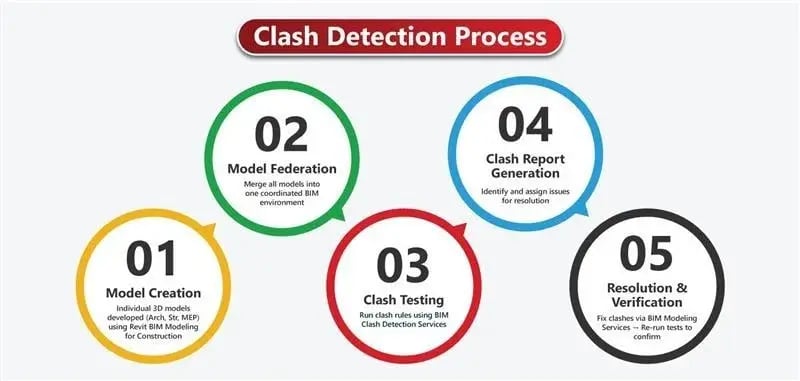
## **How Do You Perform Clash Detection Step by Step?**
## 
Under the umbrella of Navisworks, there are two software; Navisworks Manage and Navisworks Simulate. Both tools offer features such as data integration, [5D BIM](https://www.novatr.com/blog/bim-for-quantity-surveyors-uses-benefits-software-and-career-path), model rendering, 2D sheet takeoff, and integration with BIM. In addition to these capabilities, Navisworks Manage contains clash detection functionalities and interference management.
Here’s a step by step guide to perform clash detection:
### **Step 01: Append the project models**
Import multidisciplinary models into Navisworks Manage. Ensure all of them are using the same coordinate system and are rightly arranged to avoid inaccurate results. If you are exporting from [Revit](https://www.novatr.com/blog/revit-for-beginners) to Navisworks, check the model settings before creating the NWC file.
### **Step 02: Open the Clash Detective tool**
Navigate to the Home tab and launch the Clash Detective window. This workspace is where you create clash tests, review results, and manage construction coordination issues throughout the project lifecycle.
### **Step 03: Create a new clash test**
Select Add Test and assign a descriptive name based on the disciplines being compared, such as Architectural vs MEP or Structural vs Plumbing. Well-organised test names make it easier to track coordination progress across multiple project reviews.
### **Step 04: Define the test settings**
Choose the two model groups you want to compare and specify the clash tolerance, search criteria, and rules. Configuring these settings helps minimise duplicate clashes and improves the accuracy of the results.
### **Step 05: Run the clash detection test**
Execute the clash test to allow Navisworks to analyse the models for physical interferences. Depending on the size and complexity of the project, the process may take a few minutes to complete.
### **Step 06: Review and prioritise the detected clashes**
Examine the [Navisworks](https://www.novatr.com/blog/navisworks-best-practices) clash detection results individually to determine whether they are critical issues, duplicate clashes, or false positives. Grouping clashes by location, trade, or severity enables teams to focus on the issues that require immediate attention.
### **Step 07: Resolve clashes and review results**
Share the clash reports with the respective teams so they can revise their models accordingly. After the updated models are received, append the latest versions and rerun the clash test to confirm that the identified conflicts have been resolved before construction begins.
## **How Do You Review and Resolve Clash Results?**
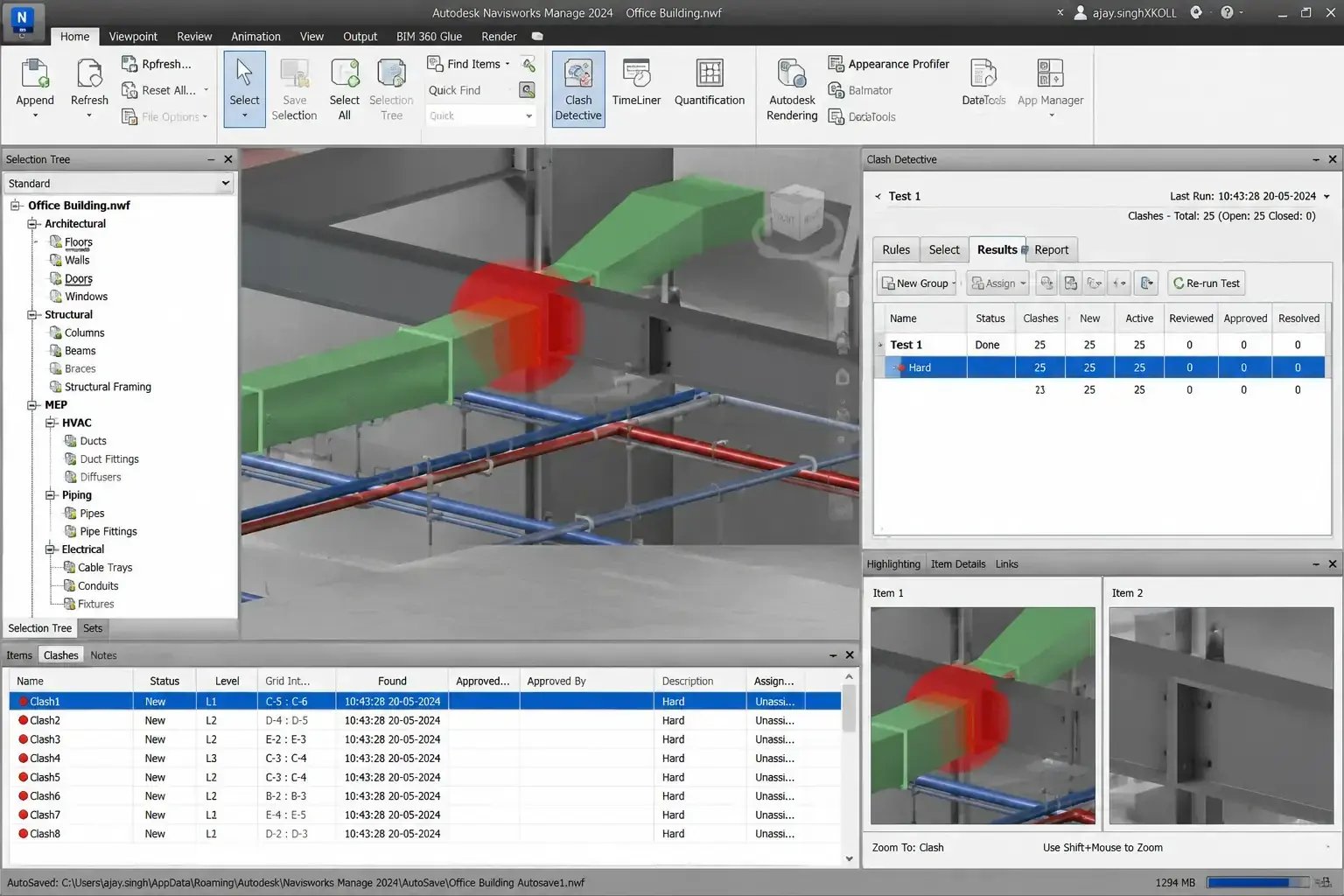
Scanning and fixing clashes demands focus, an eye for detail, and persistent effort. Here is a detailed breakdown of the process:
**Identify High-Priority Clashes:** There are 3 types of clashes; hard, soft, and workflow clashes, with the first one being the most critical of all. Addressing each of these clashes needs a unique approach. Professionals should start by resolving primary conflicts that affect structural integrity and then move on to digital [construction scheduling](https://www.novatr.com/blog/4d-bim-vs-traditional-scheduling-which-method-is-better-for-modern-construction) issues.
**Filter False Positives:** Occasionally, clashes may occur due to modelling tolerances, temporary components, or intentional design overlaps. Excluding these results helps project stakeholders focus on genuine coordination issues.
**Group Similar Clashes:** Professionals can organise clashes by discipline, location, or building system. Reviewing related issues together simplifies coordination and speeds up the resolution process.
**Assign Issues to the Right Teams:** Each clash should be communicated to the responsible discipline. Clear ownership improves accountability in the Navisworks clash detection process and reduces delays.
**Validate the Changes:** Update the latest [3D models](https://www.novatr.com/blog/everything-about-3d-modelling-in-construction) into Navisworks and rerun the clash tests. This confirms that previously identified conflicts have been resolved and no additional clashes have been introduced.
**Document the Process:** Maintain clash reports, issue logs, and resolution records throughout the project. These documents track progress, support communication, and provide a reference for future coordination meetings.
## **What Are the Best Practices for Accurate Clash Detection?**
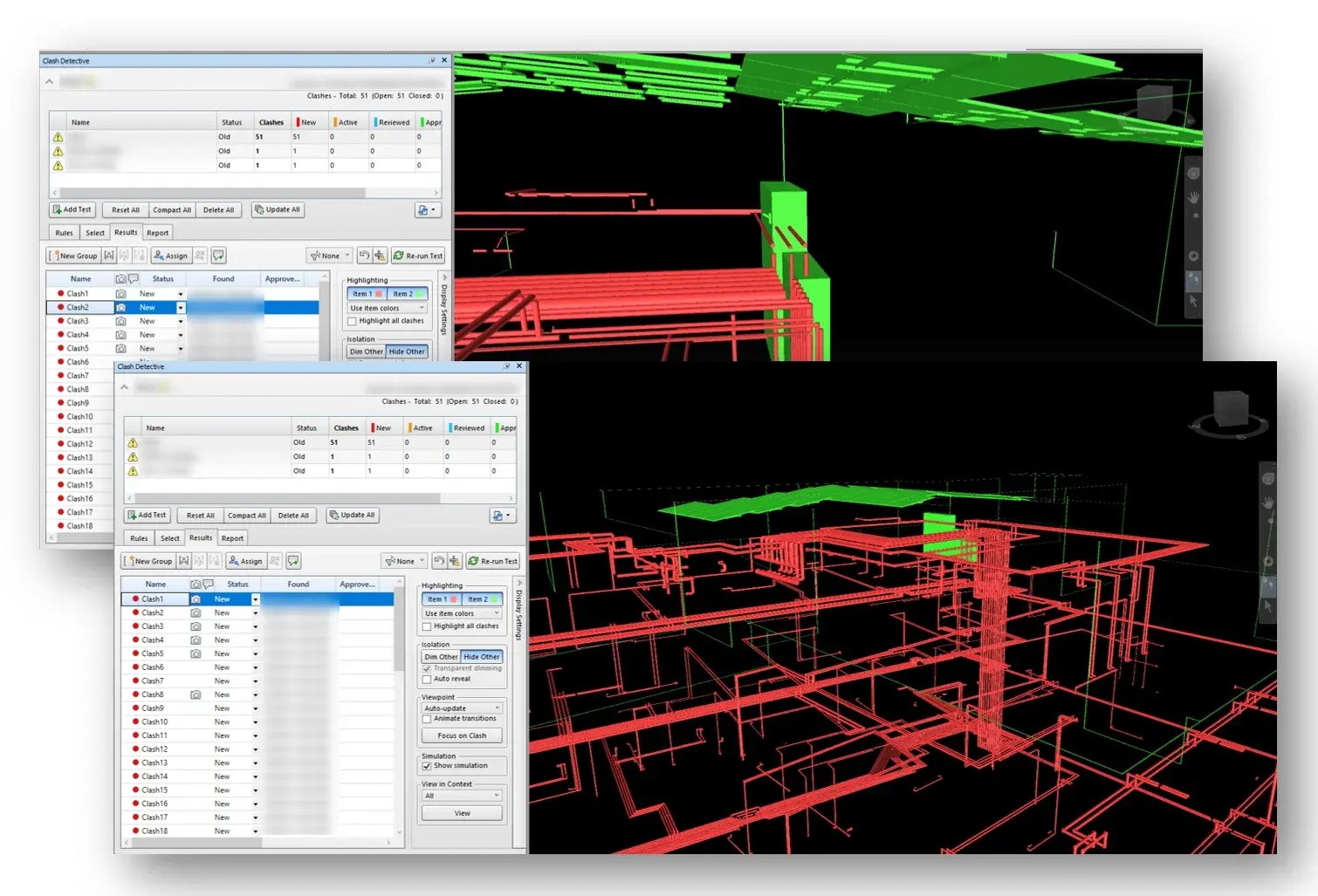
Clash detection can go haywire in AEC projects, leading to chaos and misconceptions. Let’s have a look at the best practices for [clash detection](https://www.novatr.com/blog/bim-and-clash-detection-in-construction) and BIM coordination:
- Review the federated model visually before running clash detection to identify obvious modelling errors and missing elements.
- Divide large projects into logical zones or disciplines instead of testing the entire model at once to simplify clash analysis.
- Create separate Navisworks clash detection tests for each building system to generate organised and easy-to-review results.
- Group related clashes by location or floor level to streamline coordination meetings and issue tracking.
- Share clash reports with all stakeholders after every coordination cycle to ensure design revisions are based on the latest findings.
- Archive previous clash reports to monitor coordination progress and maintain a record of resolved [design](https://www.novatr.com/blog/architectural-design-process) conflicts.
## **Which Common Mistakes Should You Avoid in Navisworks?**
Since BIM is a relatively new technology, professionals can feel lost in navigating the software and [workflow](https://www.novatr.com/blog/13-bim-skills-to-learn-beyond-revit). Here are the key mistakes one should avoid during Navisworks clash detection:
- Running clash detection without verifying that all models are aligned can produce misleading results.
- Performing a single clash test for the entire project often creates an overwhelming number of clashes that are difficult to review.
- Closing clash reports without validating the revised models increases the risk of unresolved conflicts reaching the [construction stage](https://www.novatr.com/blog/emerging-construction-technology-trends).
## **How Can You Learn Navisworks for BIM Coordination?**
To [upskill in Navisworks](https://www.novatr.com/blog/learn-navisworks-as-architects-and-civil-engineers) construction technology, students and professionals can read blogs, watch content created by industry experts, and YouTube tutorials. Autodesk also offers a free video series for interested learners to explore the software.
Once they have a sound understanding of the basics, individuals can register for short-term and long-term courses depending upon their bandwidth. Short-term programs such as the ones on Udemy, Coursera, and LinkedIn Learning are more software-focussed.
On the other hand, long format training such as the [BIM Professional Program](https://www.novatr.com/courses/bim-professional-program?utm_source=organic_search&utm_medium=blog&utm_campaign=&tblci=GiaDFMKB) by [Novatr](https://www.novatr.com/) teaches multiple BIM software (10+ tools and add-ons including Revit, Navisworks, and Autodesk Cloud Construction), alongside BIM workflow. This offers students a comprehensive understanding of the subject and equips them to deal with professional challenges heads-on.
BIM is Advancing. Are You?
Get BIM certified and open doors to a better career.
Join the Program
## **Conclusion**
Timely Navisworks clash detection makes project coordination easier. This is especially useful for AEC firms working on large-scale construction and infrastructure projects. Professionals who seek to work in such companies must certainly upskill in Autodesk Navisworks and other BIM tools. This puts them at the top of the workforce pyramid, opening opportunities to contribute to projects of scale and significance.
We suggest you explore [Novatr's](https://www.novatr.com/) course for AEC industry, [BIM Professional Program](https://www.novatr.com/courses/bim-professional-program?utm_source=organic_search&utm_medium=blog&utm_campaign=&tblci=GiaDFMKB). It is a comprehensive BIM training, divided into 5 modules, covering everything from BIM fundamentals and software to cross-team collaboration and client-ready deliverables. Participants also get an opportunity to learn through case studies, capstone projects, and mentorship sessions. Novatr further supports all learners through resume-building guidance and placement support, which helps students land lucrative jobs in the AEC industry.
Explore the [course](https://www.novatr.com/courses/bim-professional-program?utm_source=organic_search&utm_medium=blog&utm_campaign=) today!
For additional industry insights and learning resources, join us on our **[WhatsApp channel](https://whatsapp.com/channel/0029Vb7Gy2LBFLgMx79j7B1b)** or visit our **[Resources Page](https://www.novatr.com/learning-hub)** to learn about the latest trends in architecture and engineering.
## **FAQs**
### **1. How do you import Revit models into Navisworks?**
Export the Revit model as an NWC file or append the RVT file directly into Navisworks while maintaining the correct project coordinates.
### **2. How do you perform clash detection in Navisworks?**
Use the Clash Detective tool in Navisworks Manage to compare discipline models, identify interferences, and review the detected clashes.
### **3. How do you reduce false positives in clash detection?**
To reduce false positives, professionals can use appropriate clash tolerances, applying clash rules, and ensuring models are accurately aligned before running the test.
Was this content helpful to you
Like Yes
Dislike No

TABLE OF CONTENTS
BIM Is The New Standard. Are You Certified?
Get Certified in BIM
SHARE ON YOUR SOCIALS
Link Copied Successfully
Related articles
[.png) BIM BIM Freelancing Vs Full-Time Career: The Complete Guide 22 July 2026 9 min read](https://blog.novatr.com/blog/bim-freelancing-or-full-time-career) [ BIM How Structural Draftsmen Can Transition to BIM in 7 Months – Certifications & Key Software Skills 11 November 2025 5 min read](https://blog.novatr.com/blog/how-structural-draftsmen-can-transition-to-bim-in-7-months-certifications-key-software-skills) [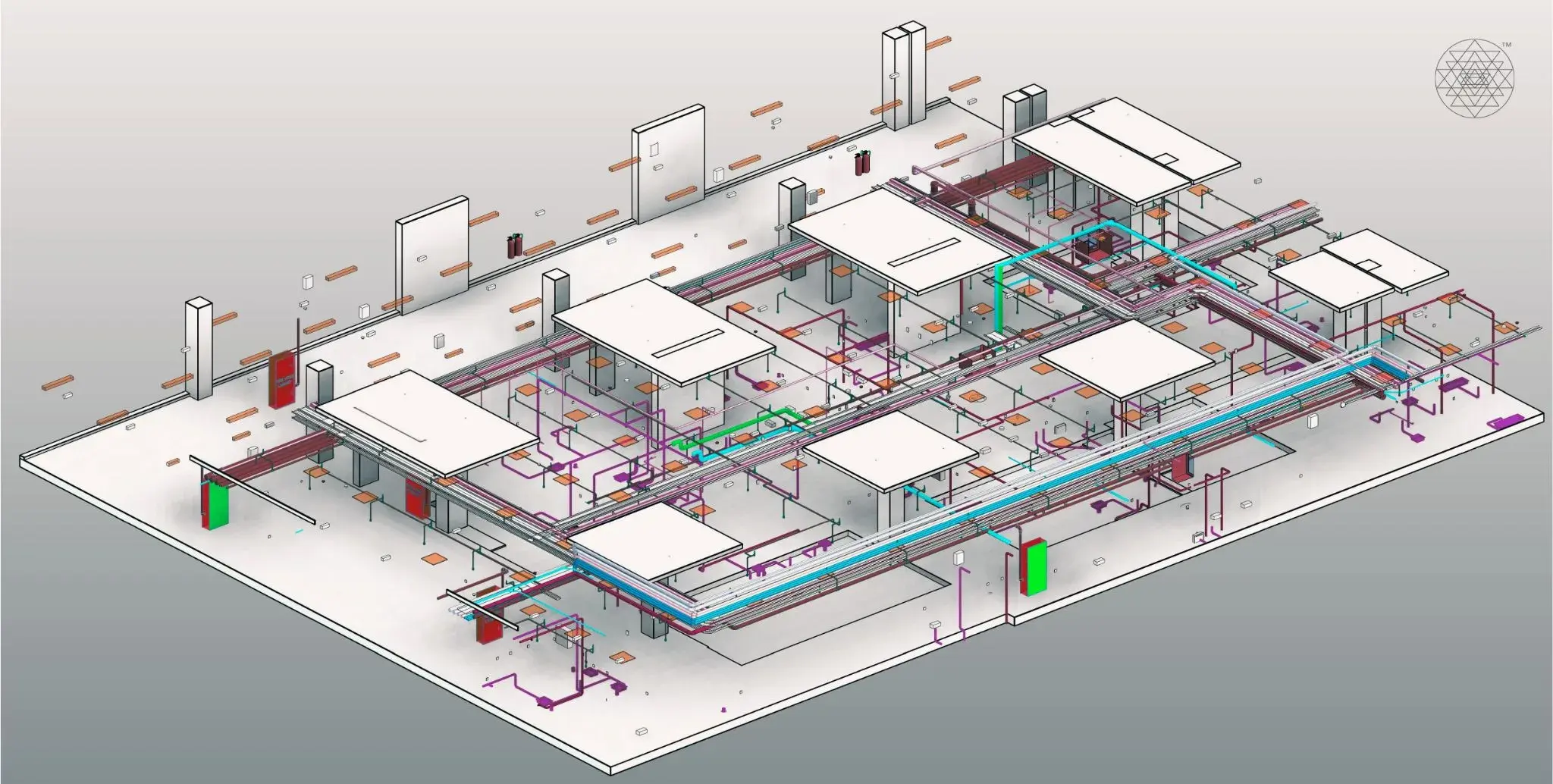 BIM Civil BIM Coordination vs Traditional Coordination? And Why BIM Coordination is better? 28 April 2026 5 min read](https://blog.novatr.com/blog/bim-coordination-vs-traditional-coordination-and-why-bim-coordination-is-better) [ BIM Top 10 BIM Softwares & Tools for Architects in 2026 22 July 2026 12 min read](https://blog.novatr.com/blog/10-best-bim-software-and-tools-for-architects)
Download Syllabus
## BIM Professional Program
Next Cohort
June 2026
Program Duration
7 Months
Premium Program benefits
8 Credentials from Autodesk, NSDC, Novatr
1 program. 10 career paths. Infinite Growth.
40+ ISO 19650 & RIBA real-world projects to practice
1-on-1 guidance. Access 400+ industry experts.
Access the biggest AEC-Tech community on the planet. 8500+ and counting
Curated for you by 100+ global BIM leaders.
Lifelong access to course content
Enter your details to download the program syllabus.
##### BIM Professional Program
June 2026, 7 Months
Your Name Invalid name.
Phone Number Enter a valid phone number
Email Please enter a valid email address.
Select years of experience\* Currently studying 0-1 years 1-2 years 2-4 years 4-8 years 8-10 years 10-12 years 12+ years Invalid selection.
Specialisation Select your background\* Architecture Civil Engineering Mechanical Engineering Electrical Engineering Invalid selection.
Are you professionally trained in interior design?
Yes
No
I agree to the [Terms of Use](https://www.novatr.com/terms-and-conditions) and [Privacy Policy](https://www.novatr.com/privacy-policy), and consent to be contacted by Email, Call, WhatsApp, or SMS.
Submit
Ready to skyrocket your career?
Begin your next chapter in AEC
with Novatr!
We are here to help you take the industry by storm with advanced, tech-first skills.
[Explore Courses](https://www.novatr.com/#courses)
Join our newsletter
Submit
Thank you for signing up.
We’ll send you a nice letter once per week. No spam.

Dare to Disrupt.
Join thousands of people who organise
work and life with Novatr.
Company
- [About Us](https://www.novatr.com/about)
- [BIM Professional Program v.2026](https://www.novatr.com/courses/bim-professional-program)
- [Masters Computational Design](https://www.novatr.com/courses/computational-design)
- [Become a Mentor](https://www.novatr.com/apply-as-mentor)
- [Hiring from Us](https://www.novatr.com/hire-from-us)
- [Careers at Novatr](https://www.novatr.com/career)
Resources
- [Blog](https://www.novatr.com/learning-hub)
- [Media Room](https://www.novatr.com/media-room-home-page)
- [Career Builder](https://www.novatr.com/career-navigator)
- [Events & Webinars](https://www.novatr.com/webinars)
- [FAQs & Support Center](https://www.novatr.com/contact-us)
- [Contact Us](https://www.novatr.com/contact-us)
- [Privacy Policy](https://www.novatr.com/privacy-policy)
- [Terms of Use](https://www.novatr.com/terms-and-conditions)
©2023 Oneistox Network Pvt. Ltd.
All Rights Reserved
```json
{
"@context" : "https://schema.org",
"@type" : "BlogPosting",
"author" : {
"@type" : "Person",
"name" : "Pragya Sharma",
"url" : "https://blog.novatr.com/blog/author/pragya-sharma"
},
"dateModified" : "2026-07-24T12:30:22.255Z",
"datePublished" : "2026-07-24T12:27:55.000Z",
"headline" : "Best Guide to Navisworks Clash Detection {{year}}",
"image" : [ "https://blog.novatr.com/hubfs/ChatGPT%20Image%20Jul%2024%2c%202026%2c%2005_57_25%20PM.png" ],
"mainEntityOfPage" : {
"@id" : "https://blog.novatr.com/blog/best-guide-to-navisworks-clash-detection",
"@type" : "WebPage"
},
"publisher" : {
"@type" : "Organization",
"logo" : {
"@type" : "ImageObject",
"url" : "https://blog.novatr.com/hubfs/Novatr%20Prev%20OX-2.svg"
}
}
}
```