




Why Use Keyboard Shortcuts in Archicad?
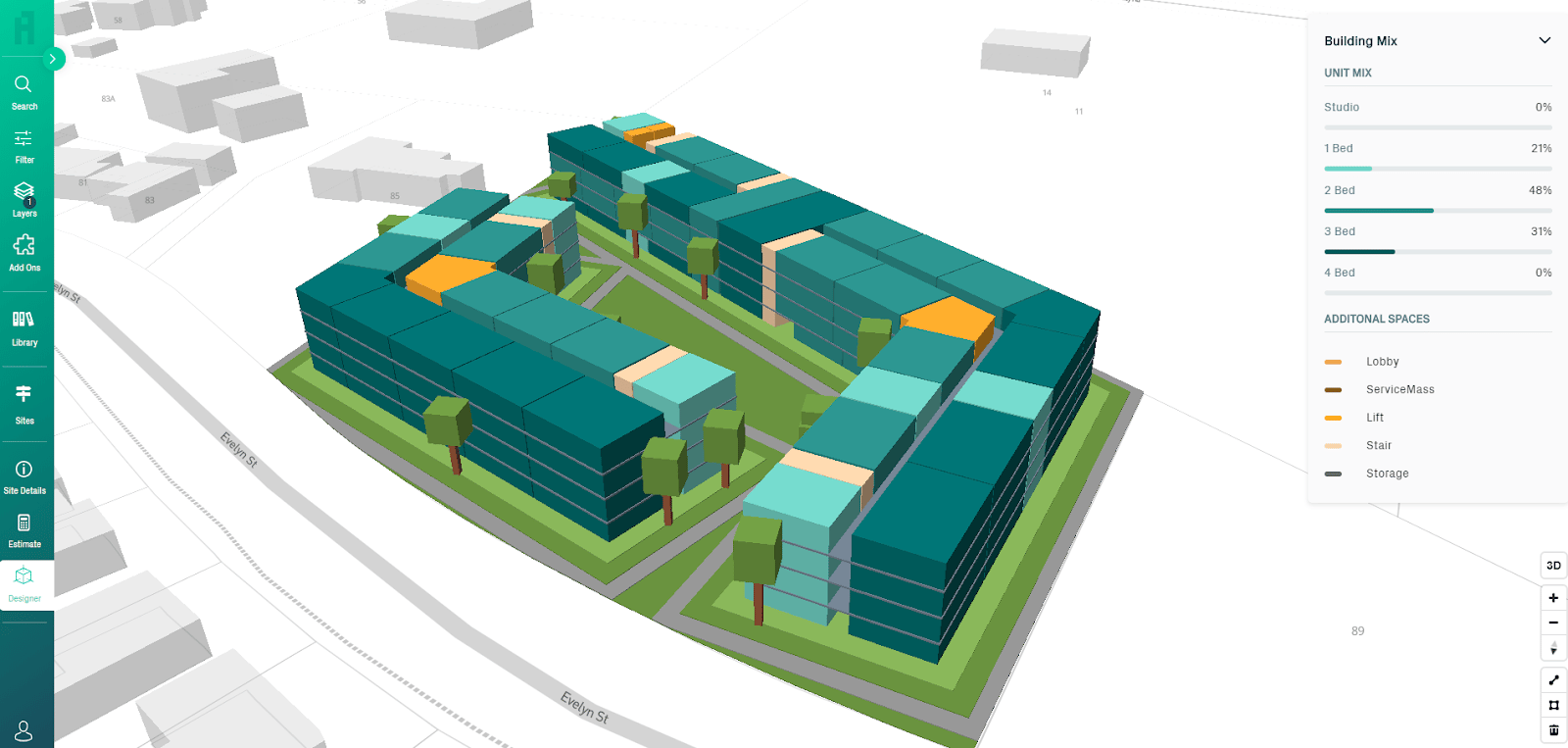
Incorporating Archicad shortcuts into your everyday routine helps improve modeling speed, accuracy, and decision-making. It allows you to focus on creativity rather than software navigation. For both seasoned professionals and those using Archicad for beginners, mastering shortcuts means less time spent searching through menus and more time designing.
Beyond just efficiency, using shortcuts reduces fatigue and repetition. Many tools within Archicad for architectural design become significantly faster when executed via keyboard commands. These hotkeys are also essential when working on large BIM projects where time and accuracy are critical. It’s one of the main reasons behind the growing demand and curiosity around “why do architects use Archicad,” especially to streamline complex workflows.
Whether drafting residential homes or commercial buildings, shortcuts enhance the experience of using core Archicad features. Teams using collaboration features in Archicad will especially benefit, as speed and precision are crucial when multiple users are contributing to a single model. Once adopted, you’ll see how shortcuts support how to use Archicad for BIM modeling at a high-performance level.
What Are the Most Useful Archicad Keyboard Shortcuts?
Below are some powerhouse shortcuts for ArchiCAD that every architect should master:
Tool selection:
- W for Wall Tool
- L for Line Tool
- 3 for 3D View
Modify actions:
- Ctrl + D to Duplicate
- Ctrl + G to Group
- Ctrl + B to Toggle Snap
Navigation & views:
- F5/F6 to switch floor plans
- Shift + F3 for Quick Section
Documentation:
- Alt + T for Text Tool
- Ctrl + K for Fill Tool
Collaborative tools:
- F4 for Teamwork / Save to BIMcloud
- Ctrl + E for Element Information
These Archicad features are designed for speed, especially beneficial when working on Archicad for architects projects requiring BIM coordination. When used regularly, these Archicad hotkeys minimize friction and help designers focus more on the creative and technical parts of architectural development.
Tips for Maximizing Productivity in Archicad
Improving productivity with ArchiCAD software isn’t just about speed. It’s about working smarter, eliminating bottlenecks, and building repeatable systems. Here are tried-and-true productivity hacks that work with all versions of Archicad:
-
Use Favorites and Templates
Templates loaded with top features of Archicad, such as saved views, standard layers, and dimension styles, can jumpstart new projects. Favorites allow for the quick placement of commonly used elements.
-
Customize Your Workspace
Rearrange palettes, assign custom hotkeys, and adjust views to suit your needs. This personalization ensures that architectural features in Archicad are at your fingertips, ready for any phase of design.
-
Master Navigation
Navigating between views using the keyboard (3 for 3D, F5 for plan) speeds up your review cycle. This becomes essential when using 3d modeling tools in Archicad to refine geometry or resolve clashes.
-
Use Interactive Schedules
Automate material quantities and component tracking. Whether updating door counts or fixture lists, this tool simplifies documentation and supports smarter BIM workflows.
-
Leverage Real-Time Team Collaboration
Collaboration features in Archicad, like BIMcloud and Teamwork, allow team members to work on the same project file simultaneously. This saves time otherwise spent merging or updating local copies.
-
Break Down Complex Geometry
For detailed facades or organic shapes, use morphs in combination with parametric tools. This hybrid technique offers more control while retaining the flexibility of standard BIM elements.
Applying these hacks helps reinforce the benefits of using Archicad, especially in multi-disciplinary teams or tight project timelines. With consistent use, even small adjustments can lead to major gains.
Tips for Effective Shortcut Implementation in Archicad
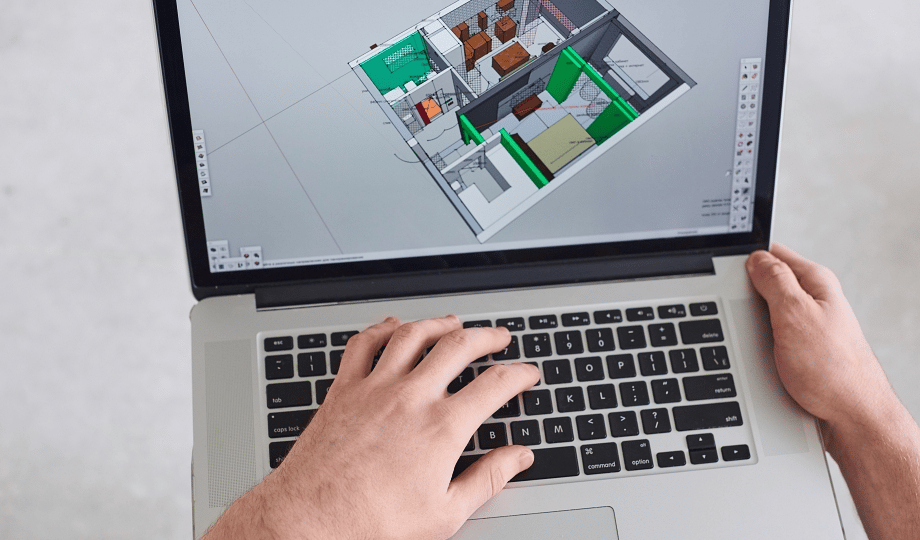
Having a list of shortcuts is helpful, but turning those into habits is where the real magic happens. Here’s how to build long-term success with your Archicad shortcuts:
-
Start Small
Begin with 3–5 essential shortcuts (e.g., move, copy, wall tool). As they become second nature, gradually add more.
-
Create a Cheat Sheet
Keep a printed or digital reference nearby. Highlight shortcuts related to your most-used Archicad features and update them regularly.
-
Assign Based on Workflow
Organize your shortcuts around tasks, e.g., different sets for modeling, drafting, and documentation. This method supports even ArchiCAD for beginners in building structured habits.
-
Share With Your Team
Foster consistency across the firm. Introduce shortcut guides during onboarding or team sessions to standardize usage and support learning.
-
Revisit and Revise Quarterly
As you evolve your workflow or start new types of projects, reassess your hotkeys. Replace what’s unused and adapt based on how you're now working with ArchiCAD for architectural design.
When adopted thoughtfully, shortcut techniques for Archicad become more than just commands; they become design habits that power high-performance modeling. Whether you're focused on design speed or BIM documentation, they’re a core part of why many teams say why architects choose Archicad over other platforms.