---
title: 50 Must-Know Revit Shortcuts for Architects 2026
description: Learn the most useful Revit shortcuts for architects and BIM professionals to navigate projects faster, improve efficiency, and reduce repetitive tasks.
image: https://blog.novatr.com/hubfs/ChatGPT%20Image%20Jul%2027%2c%202026%2c%2002_55_16%20PM.png
---
[Blogs](https://www.novatr.com/learning-hub)
- [Architecture & Construction](https://www.novatr.com/learning-hub?category=Architecture+%26+Construction)
- [BIM](https://www.novatr.com/learning-hub?category=BIM)
- [Computational Design](https://www.novatr.com/learning-hub?category=Computational+Design)
- [Company News](https://www.novatr.com/learning-hub?category=Company+News)
- [Expert Talks](https://www.novatr.com/learning-hub?category=Expert+Talks)
Explore Courses
[Just Launched  BIM Professional Program v.2026 Take your career to the next level by mastering the real-world application of BIM. Know More](https://www.novatr.com/courses/bim-professional-program)
[ Master Computational Design Course Break into an advanced career by learning to apply the power of computation to the art of design. Know More](https://www.novatr.com/courses/computational-design)
[Blogs](https://www.novatr.com/learning-hub)
Explore Blogs
- [Architecture & Construction](https://www.novatr.com/learning-hub?category=Architecture+%26+Construction)
- [BIM](https://www.novatr.com/learning-hub?category=BIM)
- [Computational Design](https://www.novatr.com/learning-hub?category=Computational+Design)
- [Company News](https://www.novatr.com/learning-hub?category=Company+News)
- [Expert Talks](https://www.novatr.com/learning-hub?category=Expert+Talks)
Courses
- [BIM Professional Program v.2026](https://www.novatr.com/courses/bim-professional-program)
- [Master Computational Design](https://www.novatr.com/courses/computational-design)
- [BIM/](https://www.novatr.com/learning-hub?category=BIM)
Featured Article
# 50 Essential Revit Shortcuts Every Architect Should Know

Bandana Singh
July 27, 2026
25 min read
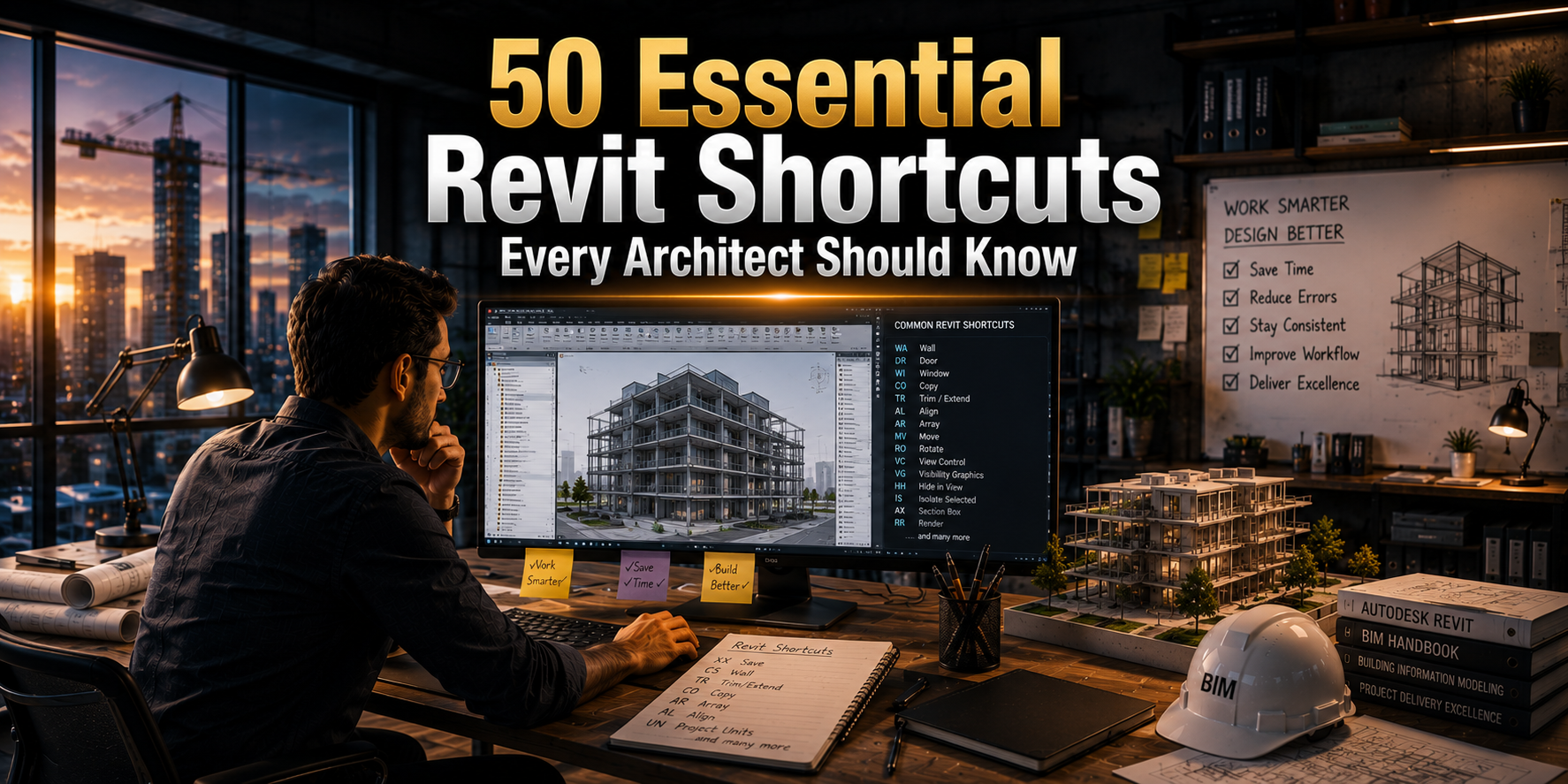

Learning Autodesk Revit shortcuts is one of the easiest ways to speed up modelling, editing, navigation, and documentation without changing the way you work. Their value is reflected in the software's widespread adoption. According to [6sense](https://6sense.com/tech/bim-and-architectural-design-software/bim-objects-market-share), Autodesk Revit holds approximately 38.19% of the BIM and architectural design software market, making it one of the most widely used platforms for building modelling and project coordination.
Whether you're an architecture student or an experienced professional, this guide covers 50 essential Revit shortcuts that can help you work more efficiently, minimise repetitive clicks, and move through projects with greater confidence.
## **Key Takeaways**
- Mastering Revit shortcuts reduces repetitive clicks, helping you model, edit, and document projects more efficiently.
- Learning shortcuts by category like Navigation, Modify, Model, Annotate, View, Manage, and Collaborate, makes them easier to remember and apply.
- Combining commonly used shortcuts can significantly improve BIM productivity, project coordination, and everyday workflow efficiency.
- Customising keyboard shortcuts in [Autodesk Revit](https://www.novatr.com/blog/revit-for-beginners) allows you to create a faster, more personalised workflow based on your working style.
- Pairing shortcut knowledge with practical experience through a BIM course helps you build industry-ready skills for real-world architectural and BIM projects.
Master BIM Before You Fall Behind
Join 8500+ AEC professionals building BIM careers.
Explore the Program
## **Why are Keyboard Shortcuts Essential in Revit?**
**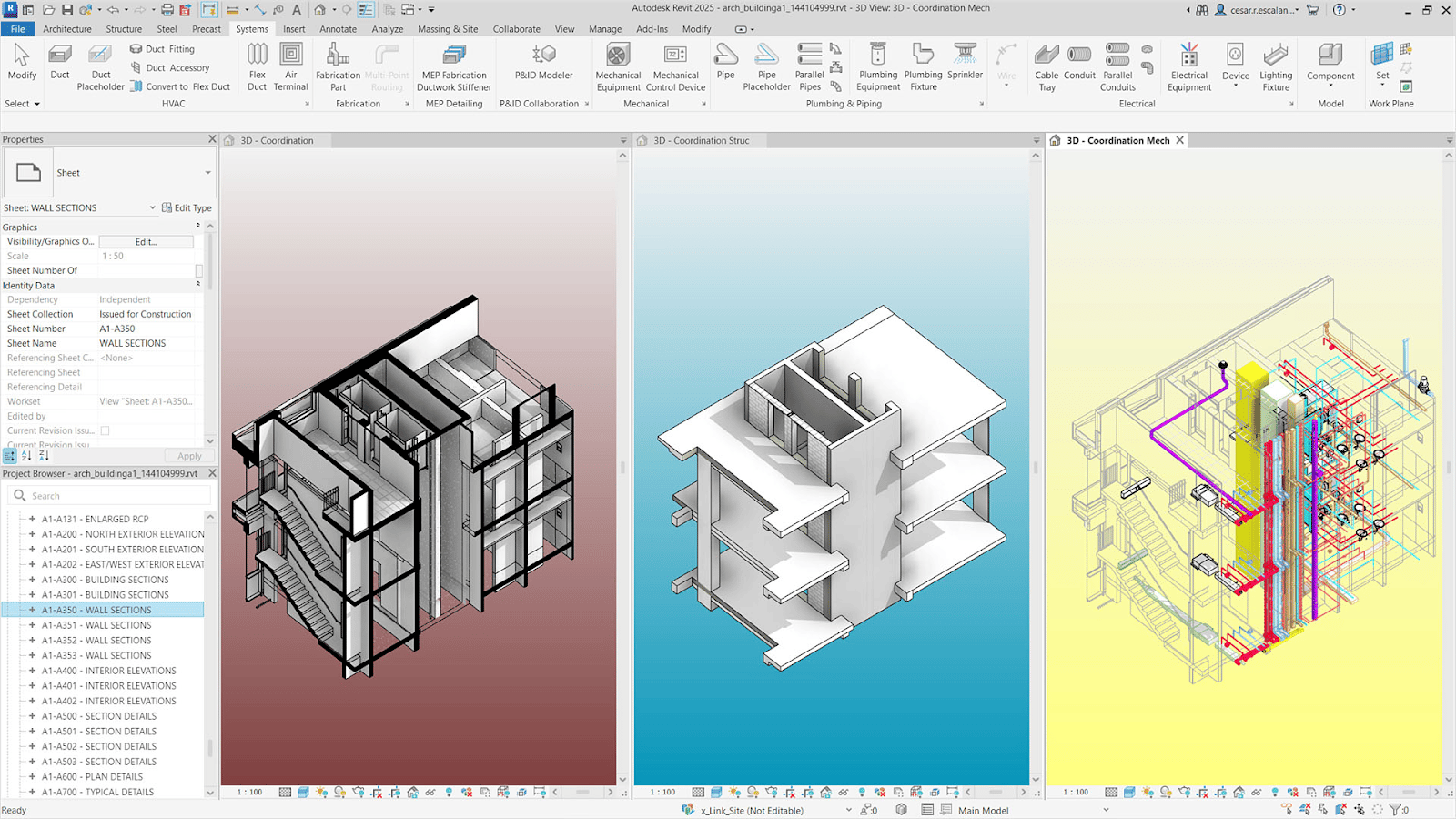**
Keyboard shortcuts become increasingly valuable as projects grow in size and complexity. Instead of repeatedly navigating through menus, they allow architects to focus on designing, reviewing, and coordinating models more efficiently.
- ### **Faster BIM Workflow**
Frequently used commands such as Move, Copy, Align, and Trim can be accessed instantly, helping you complete routine tasks without interrupting your BIM workflow or switching between multiple toolbars.
- ### **Quicker Construction Documentation**
Preparing drawings involves repeated actions like placing dimensions, creating detail lines, and managing views. [Using Revit shortcuts](https://www.novatr.com/blog/revit-keyboard-shortcuts-and-productivity-hacks) reduces the time spent on repetitive tasks while making construction documentation easier to update as the model changes.
- ### **Better Project Coordination**
Large BIM projects require architects to review linked models, visibility settings, and design revisions regularly. Shortcuts help you navigate between views and coordination tools more quickly, improving project coordination across disciplines.
- ### **Improved Modelling Efficiency**
Searching through ribbons and menus breaks concentration, especially when making frequent edits. Keyboard shortcuts keep your focus on the model, allowing you to make changes more quickly and maintain a smoother design process.
- ### **Greater Productivity Over Time**
As commonly used shortcuts become second nature, everyday tasks require less effort. This allows architects to spend more time refining designs and solving project challenges instead of navigating the software interface.
## **What are the 50 Most Useful Revit Shortcuts?**
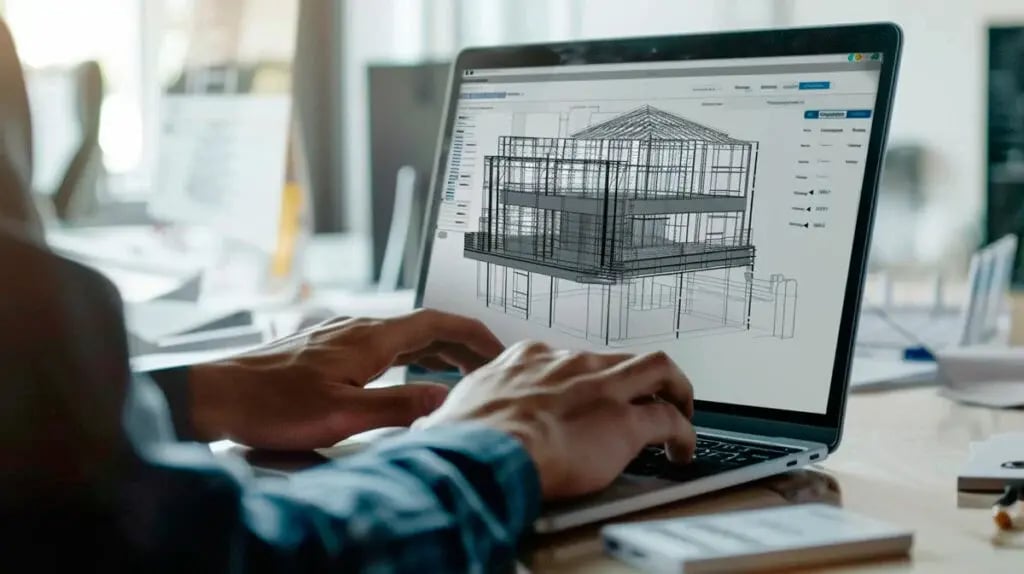
Learning the right shortcuts can make everyday modelling, editing, and documentation much faster. The commands below are grouped by task, making them easier to remember and apply while working on digital construction projects and improving overall BIM productivity.
| **Category** | **Shortcut** | **Command** | **Purpose** |
| --- | --- | --- | --- |
| **Navigation** | ZF | Zoom to Fit | Displays the entire model in the active view. |
| ZE | Zoom Extents | Fits all visible elements within the view. | |
| ZZ | Zoom Window | Zooms into a selected area. | |
| WT | Tile Windows | Displays multiple project views side by side. | |
| F8 | Orthographic/3D Toggle | Switches between orthographic and perspective views. | |
| SH | Wheel (Pan) | Activates pan while navigating the model. | |
| **Modify** | MV | Move | Moves selected elements. |
| CO | Copy | Creates copies of selected elements. | |
| RO | Rotate | Rotates selected objects. | |
| AL | Align | Aligns elements accurately. | |
| TR | Trim/Extend | Trims or extends elements to a corner. | |
| OF | Offset | Creates a parallel copy at a specified distance. | |
| MM | Mirror – Pick Axis | Mirrors elements about a selected axis. | |
| DM | Mirror – Draw Axis | Mirrors elements using a drawn axis. | |
| SC | Scale | Resizes selected elements proportionally. | |
| AR | Array | Creates multiple copies in a pattern. | |
| **Model** | WA | Wall | Start the Wall tool. |
| DR | Door | Place doors. | |
| WN | Window | Place windows. | |
| RP | Reference Plane | Creates a reference plane. | |
| RL | Reference Line | Creates a reference line. | |
| CM | Component | Places loadable families. | |
| GR | Grid | Creates structural or architectural grids. | |
| LL | Level | Creates building levels. | |
| **Annotate** | DI | Aligned Dimension | Place dimensions. |
| TG | Tag by Category | Adds tags to model elements. | |
| DL | Detail Line | Draws 2D detail lines. | |
| TX | Text | Inserts text notes. | |
| RM | Room | Place room objects. | |
| RT | Room Tag | Adds room tags. | |
| **View** | VG | Visibility/Graphics | Controls visibility settings. |
| TL | Thin Lines | Toggles thin line display. | |
| BX | Section Box | Enables or edits a section box in 3D. | |
| HI | Hide in View | Hides selected elements. | |
| HR | Reset Temporary Hide/Isolate | Restores hidden elements. | |
| RH | Reveal Hidden Elements | Displays hidden objects. | |
| **Manage** | UN | Undo | Reverses the previous action. |
| RE | Reload Latest | Updates changes from the central model. | |
| PU | Purge Unused | Removes unused project content. | |
| KS | Keyboard Shortcuts | Open the shortcut editor. | |
| SN | Snaps | Controls snapping behaviour. | |
| UC | Project Units | Open unit settings. | |
| **Collaborate** | SW | Switch Windows | Switches between open Revit windows. |
| CS | Create Similar | Creates another instance of the selected element. | |
| EH | Hide Element | Temporarily hides selected elements. | |
| HH | Hide Category | Hides an entire category in the current view. | |
| IC | Interference Check | Checks for clashes between elements. | |
| RL | Reload Links | Updates linked models. | |
| **Miscellaneous** | PR | Properties | Activates the Properties palette. |
| PB | Project Browser | Opens or focuses on the Project Browser. | |
| F1 | Help | Opens Revit Help. | |
| ESC | Cancel | Cancels the current command or deselects elements. | |
| CTRL + S | Save | Saves the current project. | |
| CTRL + Z | Undo | Reverses the previous action. | |
## **Which Shortcut Combinations Save the Most Time?**
**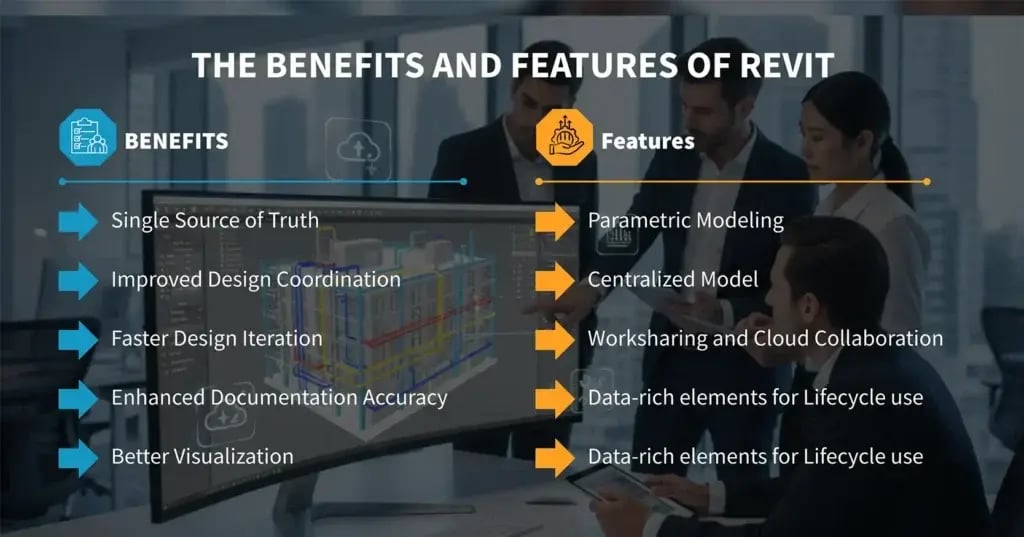**
Some Revit commands are even more effective when used together. These combinations reduce repetitive actions, improve design efficiency, and help strengthen your [BIM skills](https://www.novatr.com/blog/bim-career-skills-guide) while working on projects in modern construction technology.
| **Workflow** | **Shortcut Combination** | **How It Helps** |
| --- | --- | --- |
| Copy and Position Elements | **CO → AL** | Copy an element and align it precisely without making manual adjustments. |
| Move and Rotate Objects | **MV → RO** | Reposition elements and set the correct orientation in one smooth workflow. |
| Create Walls Efficiently | **WA → TR → AL** | Draw walls, clean up intersections, and align them accurately. |
| Add Doors and Windows | **DR → WN → AL** | Place openings and align them correctly within walls. |
| Speed Up Documentation | **DI → TG → TX** | Add dimensions, tags, and notes quickly while preparing drawings. |
| Edit Similar Elements | **CS → MV → CO** | Create similar components, reposition them, and duplicate where required. |
| Review Model Visibility | **VG → TL → ZZ** | Adjust visibility settings, switch to thin lines, and zoom into detailed areas. |
| Coordinate Linked Models | **WT → VG → IC** | View multiple windows, control visibility, and perform interference checks during coordination. |
| Manage Project Revisions | **EH → RH → HR** | Hide elements temporarily, review hidden objects, and restore the original view when finished. |
| Save and Continue Working | **Ctrl + S → UN** | Save your progress regularly and undo recent actions safely whenever needed. |
## **How Can You Create and Customise Revit Keyboard Shortcuts?**
Autodesk Revit allows you to customise keyboard shortcuts, making it easier to access the commands you use most often during architectural design. A personalised setup can improve efficiency and create a smoother experience while working with [BIM software](https://www.novatr.com/blog/10-best-bim-software-used-by-aec-firms).
- **Open the Keyboard Shortcuts Menu:** Go to View → User Interface → Keyboard Shortcuts, or press KS to open the shortcut manager in Autodesk Revit.
- **Search for a Command:** Use the search bar to quickly find the tool or command you want to customise instead of browsing through the full list.
- **Assign a New Shortcut:** Enter your preferred key combination in the Press New Keys field and click Assign, ensuring it does not conflict with another command.
- **Edit or Remove Existing Shortcuts:** Replace shortcuts that you rarely use or remove them completely to keep your workflow organised
- **Use Consistent Shortcuts:** Create logical key combinations that are easy to remember, helping you work faster and switch between commands with minimal interruption.
## **How Can You Become Faster in Revit?**
Knowing keyboard shortcuts is a great start, but becoming efficient in Revit also requires hands-on experience with [real BIM projects](https://www.novatr.com/blog/top-bim-projects-in-india) and industry workflows. If you're planning to build long-term architecture careers, learning how professionals use Revit in collaborative environments makes a significant difference.
With Novatr's [BIM Professional Program](https://www.novatr.com/courses/bim-professional-program?utm_source=organic_search&utm_medium=blog&utm_campaign=), you can:
- Work on real-world BIM projects that reflect industry practices.
- Learn from experienced architects and BIM professionals.
- Build practical skills in Revit, coordination, and documentation.
- Develop a strong portfolio through project-based learning.
- Earn an industry-recognised BIM certification that strengthens your profile for BIM and AEC roles.
BIM is Advancing. Are You?
Get BIM certified and open doors to a better career.
Join the Program
## **Conclusion**
Knowing Revit shortcuts is more than a way to work faster. It helps you stay focused on design instead of searching through menus. As these commands become second nature, you'll spend less time on repetitive actions and more time refining models, improving documentation, and collaborating with confidence.
If you want to build these skills in a practical setting, [BIM Professional Program](https://www.novatr.com/courses/bim-professional-program?utm_source=organic_search&utm_medium=blog&utm_campaign=) by [Novatr](https://www.novatr.com/) is a comprehensive BIM course designed around real industry workflows. Through live projects, expert mentorship, portfolio development, and hands-on training with BIM tools, you'll gain the practical experience employers look for in today's AEC industry.
For additional industry insights and learning resources, join us on our **[WhatsApp channel](https://whatsapp.com/channel/0029Vb7Gy2LBFLgMx79j7B1b)** or visit our **[Resources Page](https://www.novatr.com/learning-hub)** to learn about the latest trends in architecture and engineering.
## **FAQs**
### **1. What are the best Revit shortcuts for beginners?**
Beginners should start with frequently used shortcuts such as MV (Move), CO (Copy), WA (Wall), DI (Dimension), AL (Align), and TR (Trim/Extend). These commands cover the most common modelling and editing tasks.
### **2. Which Revit shortcuts save the most time?**
Shortcuts like MV, TR, AL, CO, VG (Visibility Graphics), ZZ (Zoom), and CS (Create Similar) help reduce repetitive clicks and speed up modelling, navigation, and project documentation.
### **3. What is the shortcut to align, trim, and offset in Revit?**
The Revit shortcuts are AL for Align, TR for Trim/Extend, and OF for Offset. These commands are commonly used to position, modify, and edit building elements accurately.
Was this content helpful to you
Like Yes
Dislike No

TABLE OF CONTENTS
BIM Is The New Standard. Are You Certified?
Get Certified in BIM
SHARE ON YOUR SOCIALS
Link Copied Successfully
Related articles
[ BIM Civil How Real BIM Projects Work: From Design to Construction? 5 May 2026 5 min read](https://blog.novatr.com/blog/the-practicality-of-bim-projects-from-design-to-construction) [ BIM Revit for Beginners: Everything You Need to Start Your First BIM Project 24 July 2026 8 min read](https://blog.novatr.com/blog/revit-for-beginners) [ BIM D5 Render for Revit: Understanding The Workflow & Key Uses 12 November 2025 5 min read](https://blog.novatr.com/blog/d5-render-for-revit-understanding-the-workflow-key-uses) [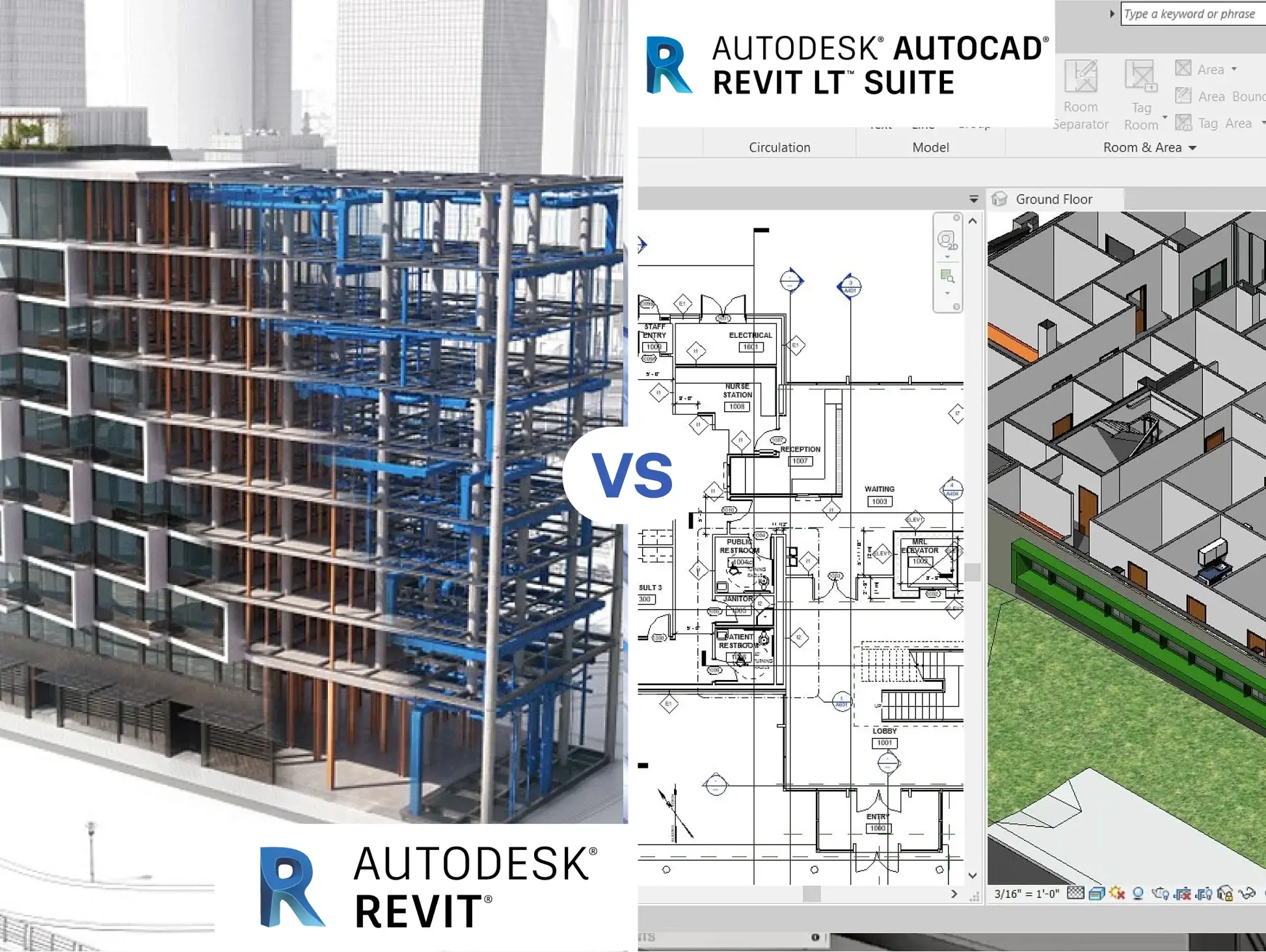 BIM Revit v/s Revit LT: Which software should you learn in 2026? 17 November 2022 15 min read](https://blog.novatr.com/blog/revit-vs-revit-lt)
Download Syllabus
## BIM Professional Program
Next Cohort
June 2026
Program Duration
7 Months
Premium Program benefits
8 Credentials from Autodesk, NSDC, Novatr
1 program. 10 career paths. Infinite Growth.
40+ ISO 19650 & RIBA real-world projects to practice
1-on-1 guidance. Access 400+ industry experts.
Access the biggest AEC-Tech community on the planet. 8500+ and counting
Curated for you by 100+ global BIM leaders.
Lifelong access to course content
Enter your details to download the program syllabus.
##### BIM Professional Program
June 2026, 7 Months
Your Name Invalid name.
Phone Number Enter a valid phone number
Email Please enter a valid email address.
Select years of experience\* Currently studying 0-1 years 1-2 years 2-4 years 4-8 years 8-10 years 10-12 years 12+ years Invalid selection.
Specialisation Select your background\* Architecture Civil Engineering Mechanical Engineering Electrical Engineering Invalid selection.
Are you professionally trained in interior design?
Yes
No
I agree to the [Terms of Use](https://www.novatr.com/terms-and-conditions) and [Privacy Policy](https://www.novatr.com/privacy-policy), and consent to be contacted by Email, Call, WhatsApp, or SMS.
Submit
Ready to skyrocket your career?
Begin your next chapter in AEC
with Novatr!
We are here to help you take the industry by storm with advanced, tech-first skills.
[Explore Courses](https://www.novatr.com/#courses)
Join our newsletter
Submit
Thank you for signing up.
We’ll send you a nice letter once per week. No spam.

Dare to Disrupt.
Join thousands of people who organise
work and life with Novatr.
Company
- [About Us](https://www.novatr.com/about)
- [BIM Professional Program v.2026](https://www.novatr.com/courses/bim-professional-program)
- [Masters Computational Design](https://www.novatr.com/courses/computational-design)
- [Become a Mentor](https://www.novatr.com/apply-as-mentor)
- [Hiring from Us](https://www.novatr.com/hire-from-us)
- [Careers at Novatr](https://www.novatr.com/career)
Resources
- [Blog](https://www.novatr.com/learning-hub)
- [Media Room](https://www.novatr.com/media-room-home-page)
- [Career Builder](https://www.novatr.com/career-navigator)
- [Events & Webinars](https://www.novatr.com/webinars)
- [FAQs & Support Center](https://www.novatr.com/contact-us)
- [Contact Us](https://www.novatr.com/contact-us)
- [Privacy Policy](https://www.novatr.com/privacy-policy)
- [Terms of Use](https://www.novatr.com/terms-and-conditions)
©2023 Oneistox Network Pvt. Ltd.
All Rights Reserved
```json
{
"@context" : "https://schema.org",
"@type" : "BlogPosting",
"author" : {
"@type" : "Person",
"name" : "Bandana Singh",
"url" : "https://blog.novatr.com/blog/author/bandana-singh"
},
"dateModified" : "2026-07-27T09:32:09.335Z",
"datePublished" : "2026-07-27T09:26:48.000Z",
"headline" : "50 Must-Know Revit Shortcuts for Architects {{year}}",
"image" : [ "https://blog.novatr.com/hubfs/ChatGPT%20Image%20Jul%2027%2c%202026%2c%2002_55_16%20PM.png" ],
"mainEntityOfPage" : {
"@id" : "https://blog.novatr.com/blog/50-essential-revit-shortcuts-for-architects",
"@type" : "WebPage"
},
"publisher" : {
"@type" : "Organization",
"logo" : {
"@type" : "ImageObject",
"url" : "https://blog.novatr.com/hubfs/Novatr%20Prev%20OX-2.svg"
}
}
}
```